Find your way around a posting
A tour of the posting page, from the status card at the top to the notes and activity log on the side.
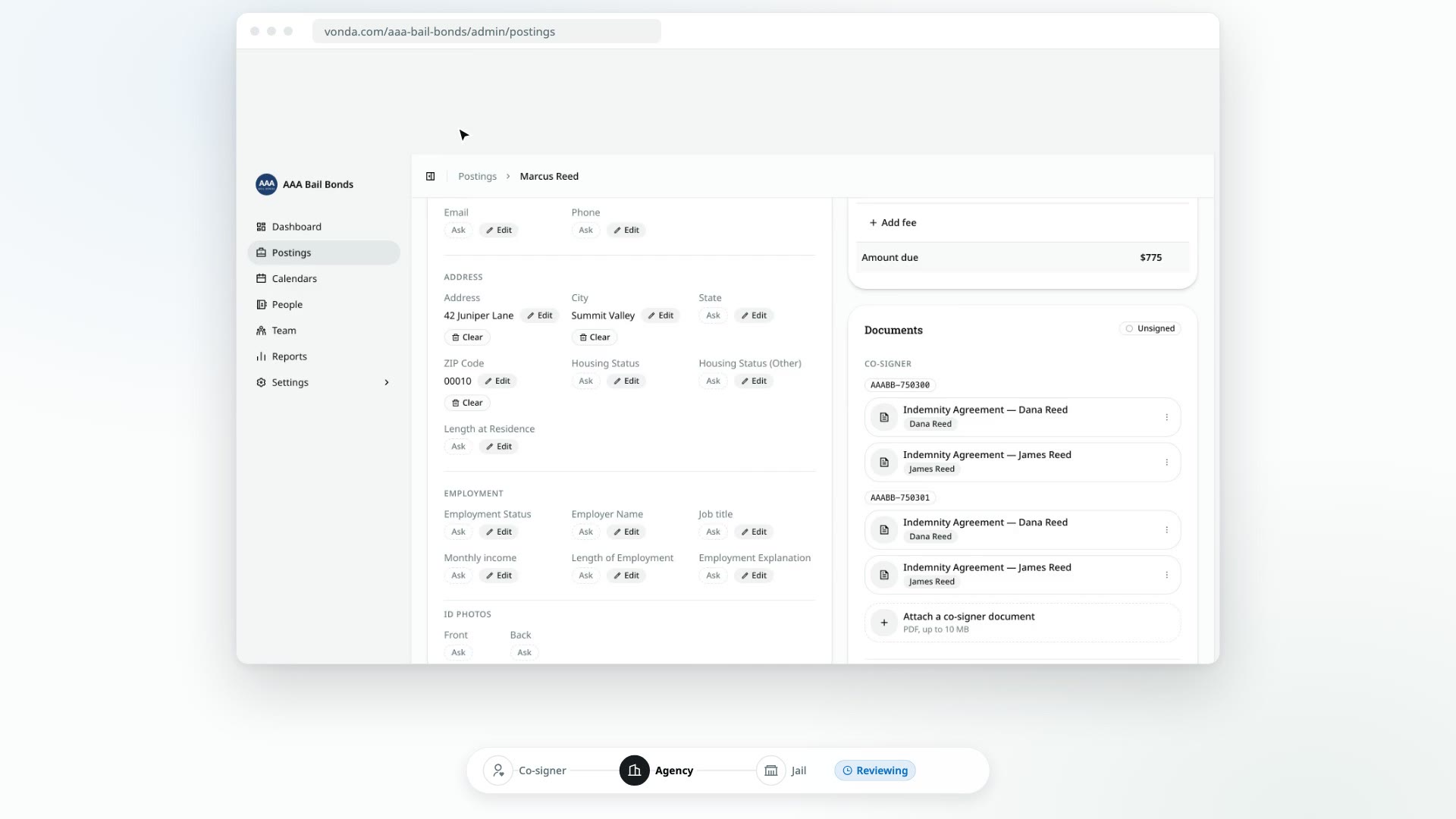
A posting is one job: getting one defendant out of one jail. It can hold several bonds, one for each court case, but it has one defendant, one set of co-signers, one payment and one assigned agent. Everything about the job is on one page, read top to bottom.
The header
At the top you'll see:
- The defendant's name and when the posting was created.
- The status badge. It tells you whose move it is. Amber badges name your next step (Start Review, Review New Info, Verify Payment…). Blue badges start with "Awaiting" and mean you're waiting on someone else. Green means released, and red means a payment or the facility rejected something.
- Closed or Archived, if an admin has closed or archived the posting.
- The assigned agent, or Unassigned.
- Where it came from: Web intake if the co-signer filled in your intake link, or Manual if an agent typed it in.
- Admin buttons: Assign or Reassign, Close or Reopen, Archive or Unarchive, and Delete. Only admins see these. On a phone they're collapsed into a menu.
The status card
Right under the header, a card says what the posting is waiting on and shows the buttons that move it forward, such as Start Review, Approve or Send for Signature. It always shows only the actions that make sense right now.
The status card only appears for the posting's assigned agent and for admins (and, on a new posting, for anyone who can claim it). It's hidden on closed and archived postings.
The main column
- Signatures: only while the documents are out for signature. It shows each co-signer and whether they've signed, for example 1 of 2 signed.
- Defendant: everything you know about the person in custody, grouped into Personal, Contact, Address and Employment, plus their ID photos if you have them.
- Bonds: one card per bond, titled with its bond number. Each card has the case number, court, judge, bail amount, charges and power of attorney, plus its court dates once the defendant is released.
- Co-signers: one card per co-signer, with the same groups as the defendant. The primary co-signer is marked Primary.
The side column
- Booking: the facility, the jail's Booking Number, when the bond was sent to the facility and when the defendant was released. Once the paperwork has gone to the facility, the assigned agent and admins also get a Copy button for the facility's Appear link. A Released or Unreleased badge sits in the corner.
- Payment: the posting's invoice (each bond's premium, the fees and the amount due) with a Paid or Unpaid badge. See Price and approve a posting.
- Collateral: the collateral you asked the co-signer for, with a badge for where it stands (Requested, Processing, Held, Returned or Forfeited), its amount and your note. Its buttons ask for, change, record, return or forfeit it, and a co-signer's proof waiting for you shows here with Confirm and Reject. It's there once you've asked for collateral, or while you can. An exonerated posting that still holds collateral also shows a Still holding collateral banner above the status card. See Request collateral.
- Documents: the posting's paperwork, with a Signed, Unsigned or Updating badge. See How documents work.
- Notes and Activity: your team's notes and the posting's history. See Add notes and read the activity log.
If you can't change anything
Only the posting's assigned agent and admins can work on a posting. Anyone else on the team sees the same page with no status card and no Edit buttons. You can still read everything and add notes. If you need to work on it, ask an admin to assign it to you.
Closed and archived postings are read-only for everyone until an admin reopens or unarchives them. Notes are the one exception: anyone on the team can still add them.