Request missing information
Ask a co-signer to fill in blank fields or send ID photos from their bail page, then review what they send back.
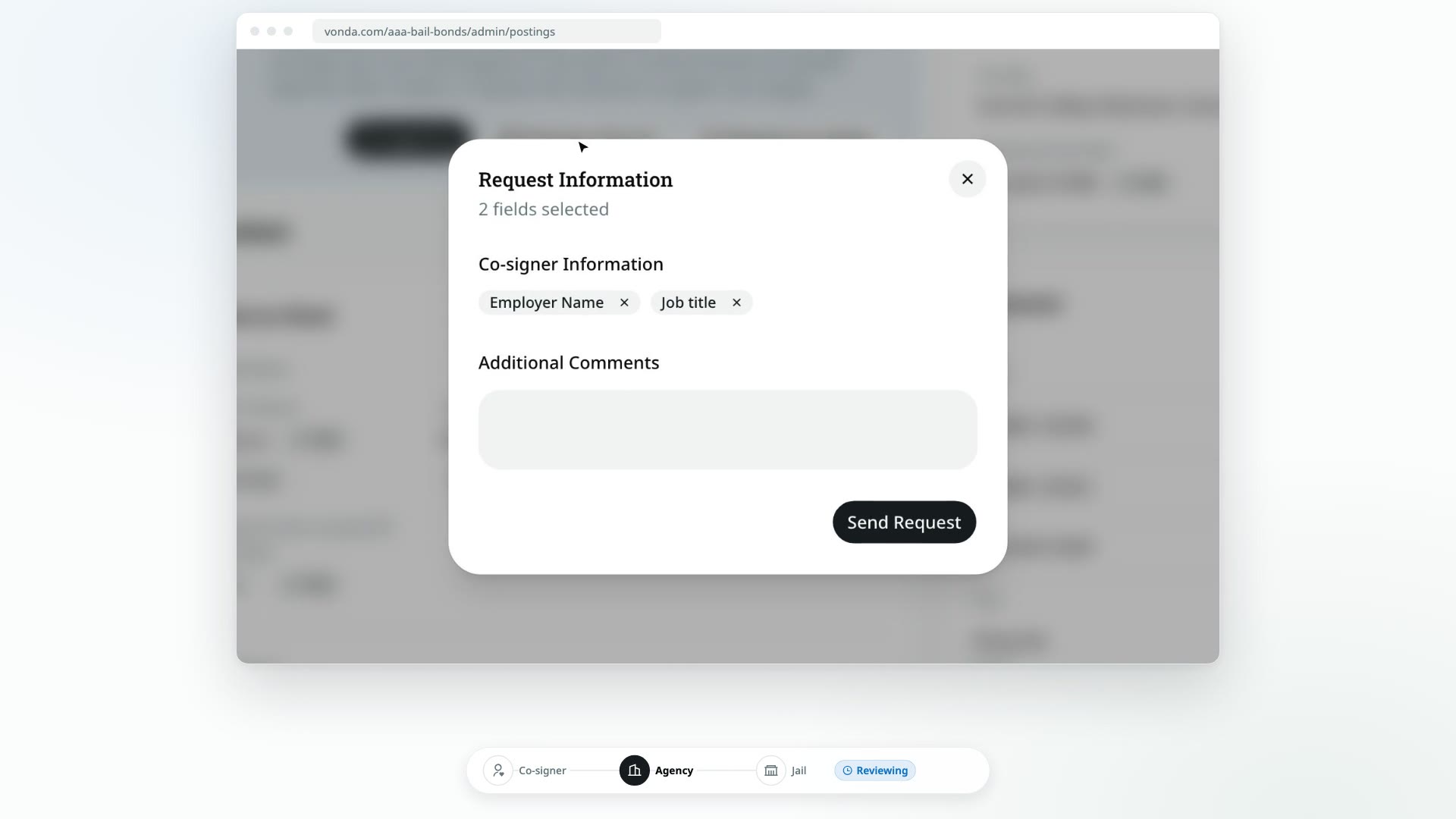
When a posting is missing something only the co-signer can tell you, like an employer, an address or a photo of their ID, you can ask for it through Vonda. The co-signer gets a message with a link, fills in exactly the fields you picked on their bail page, and the answers land straight on the posting.
Before you start
- You can edit the posting. Only the posting's assigned agent or an admin sees the Ask buttons and the Request Info button.
- The posting is Reviewing or Review New Info. Those are the only two statuses where you can send a request.
- You can only ask for blank fields. Ask appears in place of an empty value, and on a missing ID photo. To correct a field that's already filled in, edit it yourself. See Correct a posting's details.
Send a request
Pick the fields
On the defendant's card or a co-signer's card, click Ask next to each empty field you need. Each one changes to Requested. Click Requested to take a field back off the list.
Click Request Info
In the status card at the top, click Request Info. The button shows how many fields you've picked, for example Request Info (3).
Choose who to ask
If the posting has more than one co-signer, check the Recipient. Vonda picks the primary co-signer, or the other co-signer if the fields you picked are on their card. Change it if someone else should answer. With one co-signer, there's nothing to choose.
Add a note and send
Check the fields listed in the Request Information dialog. If you want to explain what you need, write it in Additional Comments. Then click Send Request.
What happens next
- The status changes to Awaiting Info, and the posting moves to the Waiting for cosigner lane.
- The recipient is told by text or email, on the contact they verified, with a link to their bail page. Only that co-signer is asked.
- The recipient sees Submit your information on their bail page, with a form holding just the fields you asked for, and clicks Submit Information when they're done. Other co-signers see Waiting on more information.
Review what they sent
When the co-signer submits, you're notified and the posting's badge changes to Review New Info. The status card, titled Cosigner submitted info, lists each field with the value they sent, and the values are already filled in on the posting.
From here you can:
- Approve the posting if everything's in order. See Price and approve a posting.
- Ask again: pick more fields with Ask and click Request Info (it reads Request More Info before you've picked any). The co-signer is told there's another request.
- Fix anything yourself with Edit, as usual.
There's no way back to Reviewing from here
Once a posting is at Review New Info, it can only be approved or sent another request. You can still edit details and adjust the price, but you can't add or remove bonds or ask for another co-signer, since those only work while the posting is Reviewing. Do those before you send the request. If you find out afterwards that a bond or co-signer is missing, close the posting and create a new one. See Close or reopen a posting.