Price and approve a posting
Set each bond's bail and premium rate, check the fees, and approve the posting so the co-signer can pay.
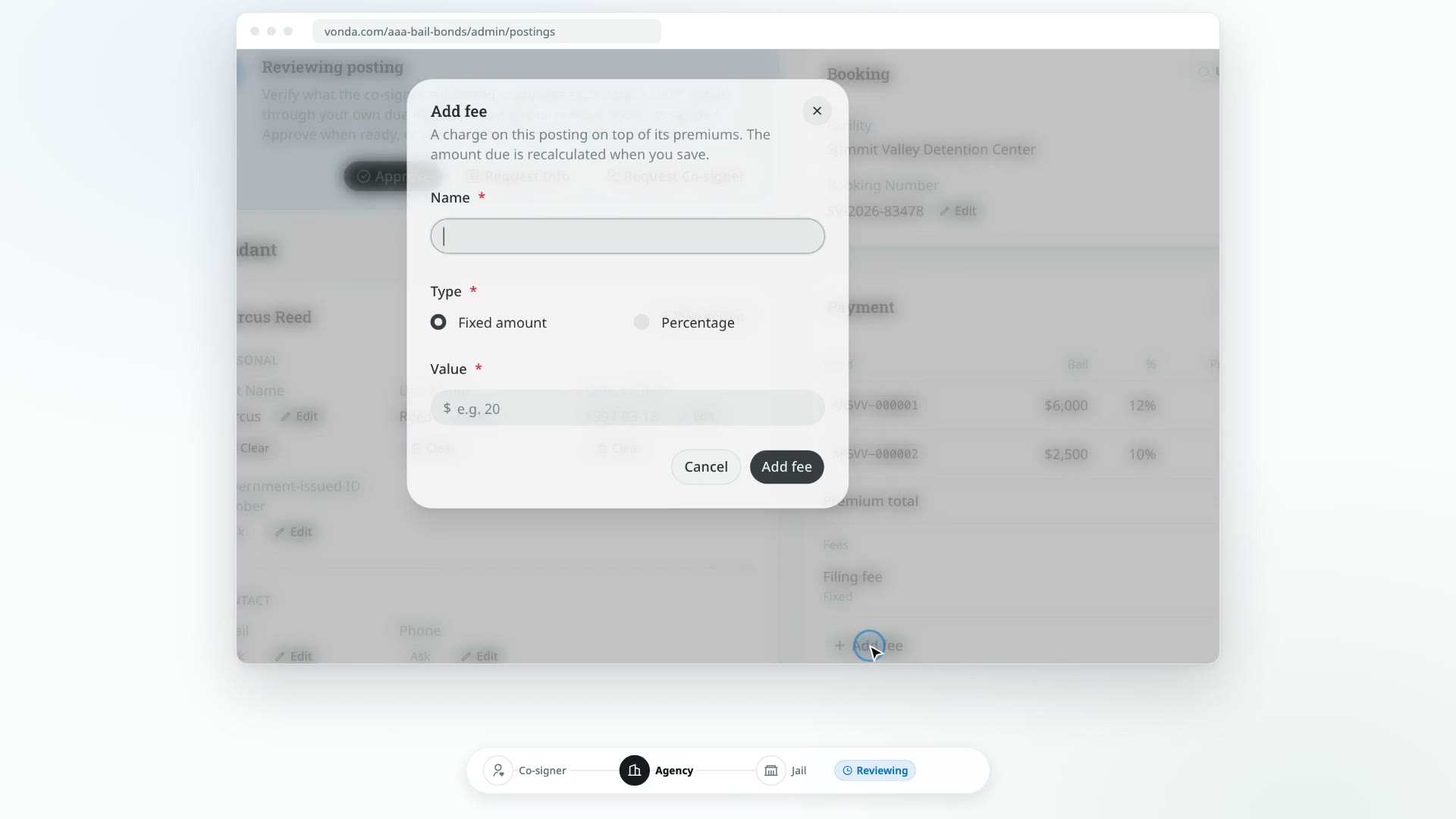
A posting gets its price when you approve it. Until then you can change each bond's bail and premium rate, and the posting's fees, on the Payment card. Approving locks those numbers and sends the co-signer the Amount due.
Before you start
- You can edit the posting. Only the posting's assigned agent or an agency admin sees the edit controls on the Payment card and the Approve button. Anyone else sees the invoice, but can't change it.
- The posting hasn't been approved yet. You can price it while it's Reviewing, while you're waiting on the co-signer (Awaiting Info, Awaiting Co-signer), and when they've sent answers back (Review New Info). The Approve button itself only shows while the posting is Reviewing or Review New Info.
- The posting is open. A closed or archived posting can't be edited.
- Any collateral you asked for is held. While a collateral request is unpaid, the Approve button is hidden and the status card says the posting can be approved once the collateral is held. Withdraw the request to approve without it. See Request collateral.
- The assigned agent has a license number. Their license prints on the paperwork, so the posting can't be approved until it's in their profile, whoever clicks Approve. See Edit your profile.
Read the invoice
The Payment card is the posting's invoice. It shows:
- One row per bond: the bond number, its bail, the premium rate it's billed at, and its premium.
- Premium total: the premiums added together.
- Fees: every fee on this posting. A new posting starts with your agency's active fee rules, which admins set up in Settings → Payments (see Create and manage fee rules). If there are none, it says No fees.
- Amount due: the premium total plus the fees. This is the only amount the co-signer is ever charged for the bail. Collateral, if you ask for it, is separate and never part of it.
Every bond starts at your agency's default premium rate, which is also set in Settings → Payments (see Set your default premium rate).
Price each bond
Open the bond's bill
On the Payment card, click the pencil at the end of the bond's row.
Enter the bail
Type the Bail Amount the court set for this bond. It has to be greater than $0.
Set the premium rate
Drag the Premium Percentage slider. This bond's premium updates as you move it, so you can check the number before you save.
Save
Click Save. The row, the premium total and the amount due update straight away, and the posting's documents are regenerated with the new figures.
Repeat this for every bond on the posting. Each bond can have its own rate.
Adjust the fees
- Add a fee: click Add fee under the fees. Pick a rule from Start from a rule, or fill in the name and amount yourself. A fee is either a fixed dollar amount or a percentage. A percentage fee is worked out from the premium total plus the fixed fees.
- Change or remove a fee: open the menu on the fee's row and choose Edit or Remove.
Changing a fee here only affects this posting. Your agency's fee rules stay as they are.
Approve
Click Approve
In the status card at the top of the posting, click Approve.
Check the summary
The Approve Posting dialog shows the same invoice you saw on the Payment card: each bond, the premium total, the fees and the amount due.
If the assigned agent has no license number on file, an Agent license missing warning at the top says so. If you click Approve anyway, Vonda refuses with the same message. The agent adds the number in their own profile settings, and then you can approve.
If a bond or the posting is missing details that go on the paperwork, such as the court, case number, judge, charges, power of attorney or booking number, a Missing due-diligence info warning lists them. You can still approve, but the documents print N/A in those spots until you fill them in. If a bond has no bail yet, nothing is billed for it.
Confirm
If something is wrong, click Cancel and fix it on the Payment card first. If it's right, click Approve.
What happens next
- The status changes to Awaiting Payment. On the Dashboard, the posting moves to the Waiting for cosigner lane.
- The co-signer is told. They get a text or an email, on the contact they verified, saying the bail has been approved. It includes the amount due and a link to pay.
- The primary co-signer can pay. On their bail page they see the same invoice. If your agency takes online payments, they pay it with Pay Now. Otherwise they follow your payment instructions and upload proof of payment. Other co-signers can see the invoice, but only the primary co-signer can pay. See Review a co-signer's payment proof and Follow or cancel an online payment.
- Collateral doesn't change any of this. If you asked for collateral, it was paid before you approved, it's held on its own Collateral card, and it never adds to the amount due. See Request collateral.
- You can record a payment yourself. If the co-signer pays you in person, use Record Payment on the posting. The amount is always the amount due. See Record an in-person payment.
- The amount due can be paid over time. If your agency offers payment plans, the primary co-signer can ask for one from their bail page, and you can offer one with Offer Payment Plan. See Review a payment plan request and Offer a payment plan.
Approving locks the price
After you approve, the pencil on each bond and the fee controls are gone from the Payment card. The co-signer is charged exactly the amount due they were sent. If you correct a bail later, for example while you review the documents, the paperwork updates but the amount due doesn't. An approval can't be undone, so check the invoice before you click Approve. If the price turns out wrong before anyone pays, close the posting and create a new one. See Close or reopen a posting.