Agency setup
Create and manage fee rules
Set up fees, such as a processing fee, that are added on top of the premiums of every new posting.
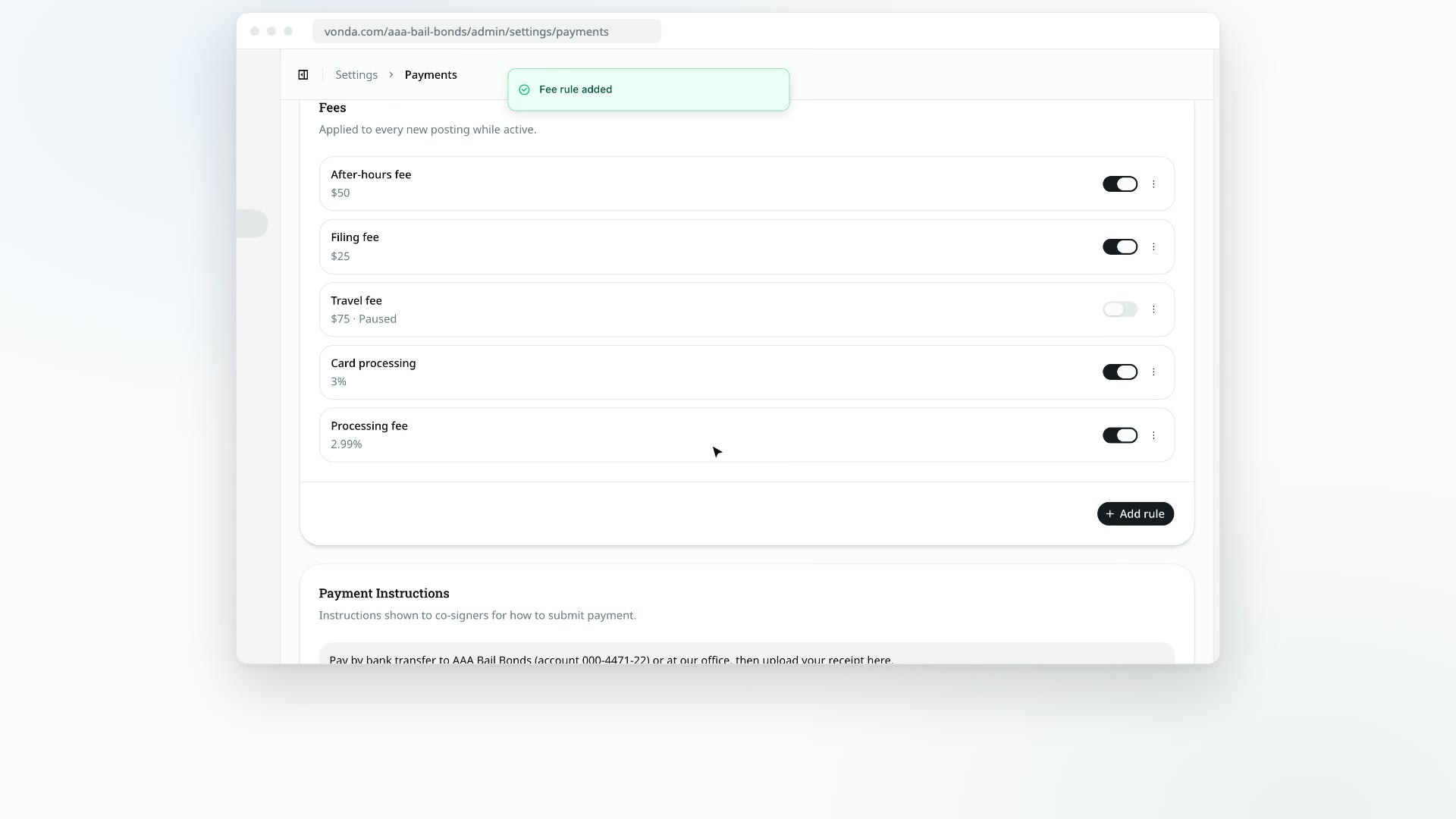
A fee rule is a charge your agency adds on top of the premiums, like a document processing fee. Every active rule is copied onto each new posting when it arrives, and shows on the posting's invoice under the premiums. The co-signer pays the premiums plus the fees as one Amount due.
Before you start
- Only admins can manage fee rules.
- A fee is a fixed amount or a percentage. A percentage fee is worked out from the posting's premium total plus its fixed fees. Percentage fees never stack on each other.
Add a rule
Open Payments
Click Settings in the sidebar, then Payments, and find the Fees card. If you have no rules yet, it says No fee rules yet.
Click Add rule
The Add fee rule dialog opens.
Fill it in
- Name: what the co-signer sees on the invoice, such as "Processing fee". Each rule needs a different name.
- Type: Fixed amount or Percentage.
- Value: a dollar amount such as
20, or a percentage such as2.99, up to two decimals. A percentage can't be more than 100.
Save
Click Add rule. You'll see Fee rule added, and the rule appears in the list with its value, for example $20 or 2.99%.
Pause, edit or delete a rule
- Pause or resume: use the switch on the rule's row. A paused rule shows Paused and isn't added to new postings. Agents can still add it to a posting by hand.
- Edit: open the menu on the row and choose Edit. Your changes apply to new postings only.
- Delete: open the menu on the row and choose Delete, then confirm in the Delete this fee rule? dialog.
What happens next
- New postings get every active rule. This covers postings from your intake page and postings your team creates in the console.
- Postings keep their own copy. Editing, pausing or deleting a rule never changes a posting that already has that fee.
- Agents can adjust fees on a posting. Before approval, the posting's assigned agent or an admin can add, change or remove fees on that posting alone. See Price and approve a posting.