Write payment instructions
Tell co-signers how to pay you when they're not paying online.
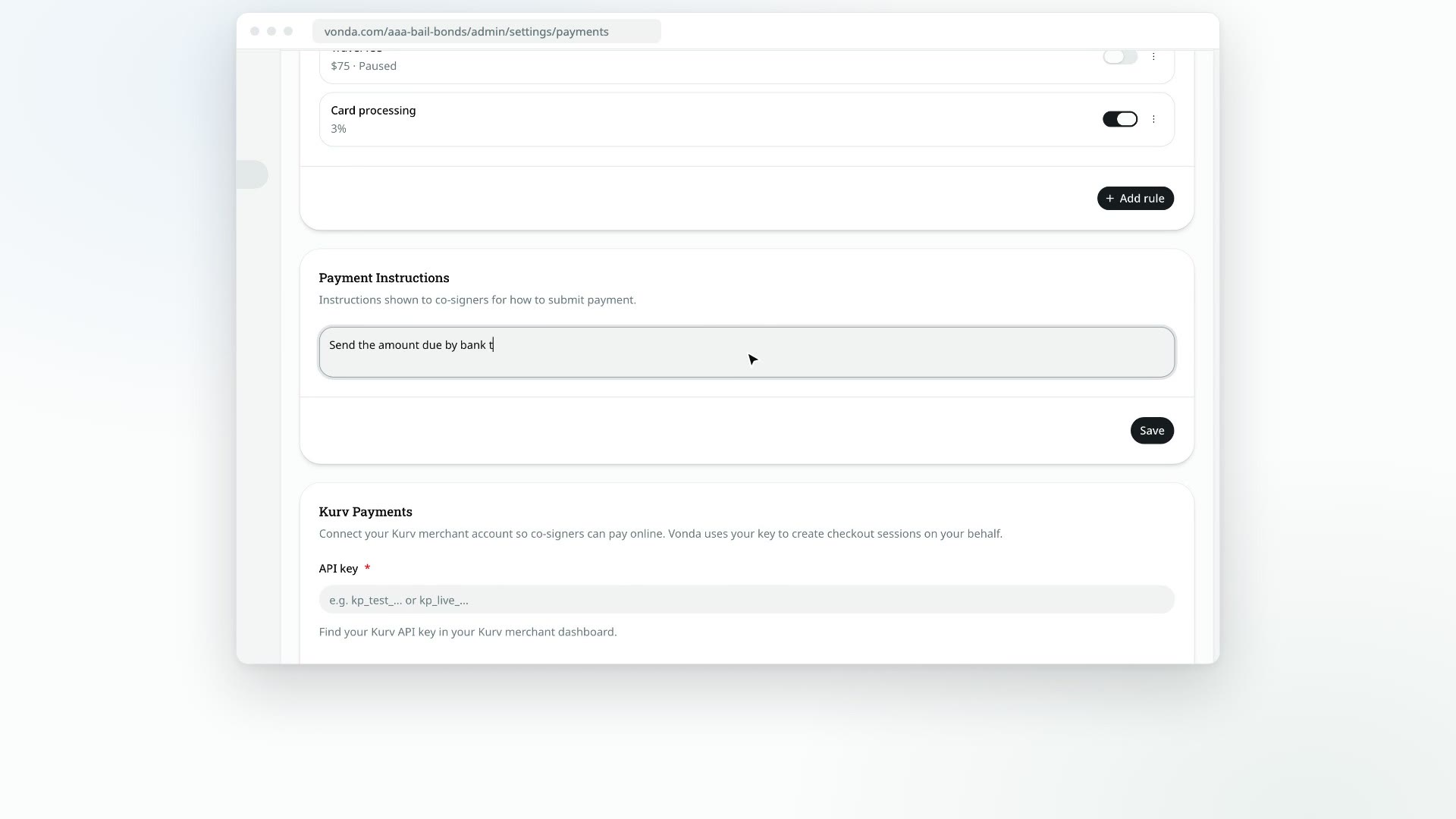
When a posting is approved, the primary co-signer needs to know how to pay you. If your agency doesn't take payments online, the co-signer sees your payment instructions on their bail page, pays you that way, and then uploads a receipt or screenshot as proof.
Before you start
- Only admins can edit the instructions.
- They only show when online payment is off. If Kurv is connected, co-signers pay online and don't see these instructions. See Connect Kurv for online payments.
Write them
Open Payments
Click Settings in the sidebar, then Payments, and find the Payment Instructions card.
Say how to pay
Write what a co-signer needs to know, for example which app or account to send money to, or where and when they can pay in person. Be specific, since this is all they'll see before they pay.
Save
Click Save. You'll see Payment instructions updated.
What the co-signer sees
Once a posting is approved and waiting for payment, the primary co-signer's bail page shows the invoice, your instructions, and a way to report the payment and upload their proof. Other co-signers can see the invoice, but only the primary co-signer can pay.
After the co-signer reports a payment, the posting shows Verify Payment for your team, and the posting's assigned agent or an admin checks the proof and confirms or rejects it. See Review a co-signer's payment proof.
If a co-signer pays you in person instead, the assigned agent or an admin can record that payment on the posting while it's Awaiting Payment. See Record an in-person payment.