Set up your email sender
Send your client emails from your agency's own address, such as notifications@youragency.com.
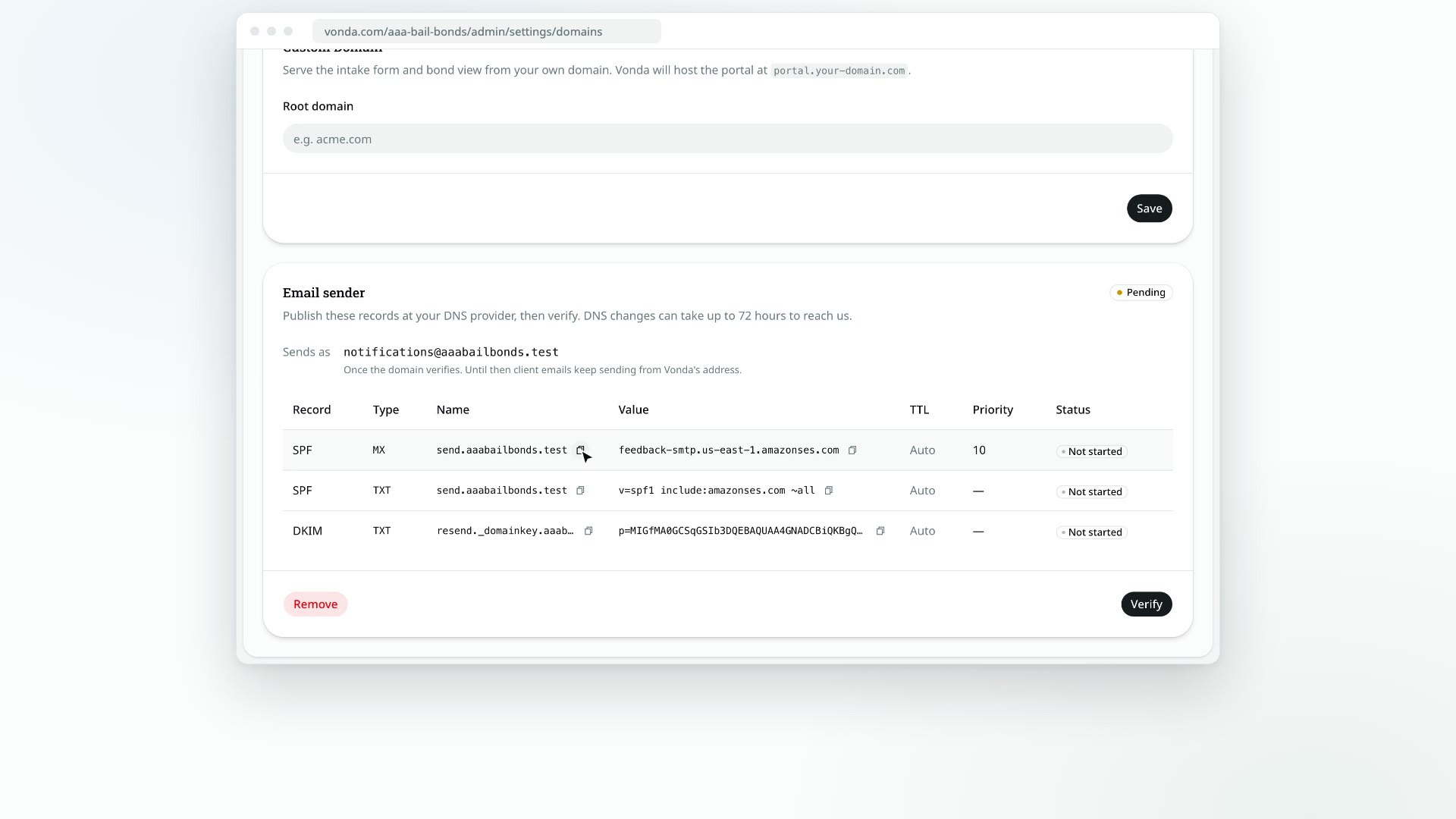
Emails to your clients always carry your agency's name as the sender. Until you set up an email sender, they come from Vonda's address. Once you verify your own domain, they come from the address you choose.
Before you start
- Only admins can set up the sender.
- You need access to your domain's DNS settings. You'll add a few records there to prove the domain is yours.
- Consider a subdomain. An address like
notifications@send.youragency.comkeeps your main domain's inbox and settings untouched.
Set it up
Enter the address
Click Settings in the sidebar, then Domains. In the Email sender card, type the Notifications email you want clients to see, then click Save address.
Publish the DNS records
The card now lists the DNS records to add, with their Record, Type, Name, Value and TTL. Use the copy buttons next to each name and value, and add every record at your DNS provider.
If the card says No DNS records yet, click Verify to fetch them.
Verify
Click Verify. The status badge at the top of the card updates, and each record shows its own status. DNS changes can take up to 72 hours to reach Vonda, so if it isn't verified yet, check back later and click Verify again.
What happens next
- Once the badge says Verified, the card reads Client emails send from your own address. Every email to a co-signer, including the verification code on your intake page, comes from your address.
- Until then, nothing breaks. Client emails keep going out from Vonda's address under your agency's name.
- Emails to your staff don't change. Alerts to your team always come from Vonda.
- Text messages don't change. They're sent from Vonda's messaging number either way.
Remove your sender
Click Remove in the card. The Remove sending domain? dialog explains that client emails go back to Vonda's address. Your DNS records stay where they are, and if you add the domain again later, it has to be verified again. Click Remove to confirm.