Replace, download or delete a template
Swap in a new version of a template's PDF, download it, remove it from your document set, or use it only for postings with a payment plan.
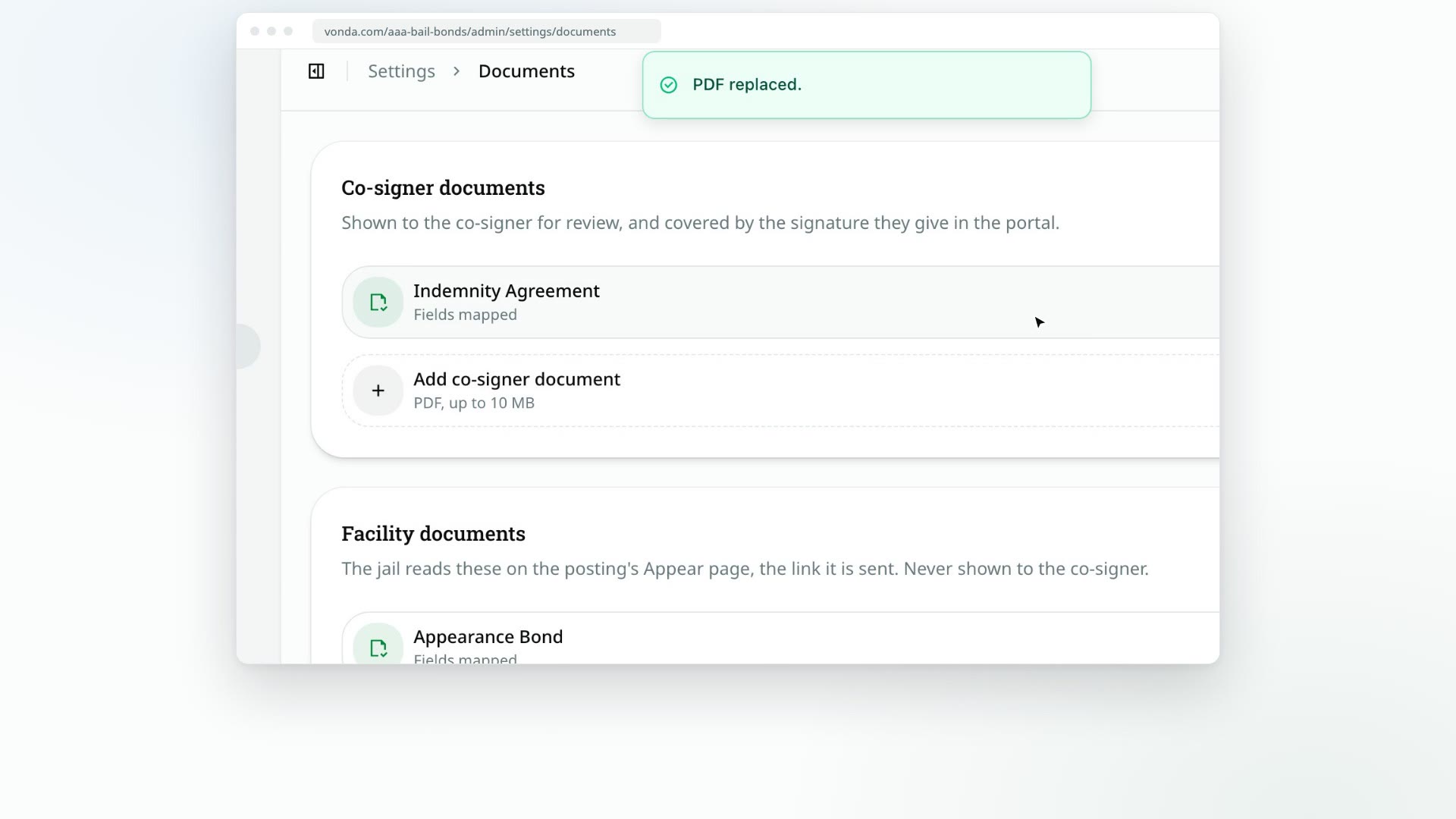
Forms change. When your agency revises a PDF, replace it instead of starting over, so its field placements carry across. Each template's row in Settings → Documents has a menu with Download, Replace and Delete.
Before you start
- Only admins can manage templates.
- Open the menu. Click Settings in the sidebar, then Documents, and click the ⋯ button at the end of the template's row.
Replace the PDF
Choose Replace
Choose Replace and pick the new PDF (up to 10 MB).
Wait for the update
The row shows Uploading the new PDF…, then Updating postings in review… while Vonda fills in the documents again on every posting in Review Documents that uses it. When it's done, you'll see PDF replaced.
Check the fields
Your field placements are kept, but they were placed on the old PDF. Click the row to open the editor and make sure each field still lines up. See Place merge fields on a template.
Replacing a PDF also clears any per-bond field adjustments your team made to this document on postings in Review Documents, since those were made against the old PDF. See Adjust where fields print on one bond.
Download the PDF
Choose Download to save the template's current PDF, without any fields filled in.
Delete a template
Choose Delete. The dialog, titled with the template's name, says The PDF and its field placements are deleted, and postings still in Review Documents drop it. Postings already past review keep the documents they generated. Click Delete to confirm.
- The PDF and its field placements are deleted. This can't be undone.
- Postings in Review Documents drop it from their documents.
- Postings past that step keep the documents they already generated.
Use a template only for payment plans
If your agency has a separate payment plan contract, upload it as a co-signer document, then switch it on as plan-only. Each row in Co-signer documents has a switch beside its ⋯ button.
Turn the switch on
Click the switch on the template's row. The row shows Updating postings in review…, then you'll see that the template is now only for postings with a payment plan. The row reads Only with a payment plan, once per posting.
Place the plan's fields
Open the template and place the Plan merge fields, such as Down Payment, APR and Total of Payments. See Place merge fields on a template.
A plan-only template works differently from your other documents:
- It's only generated for postings with a payment plan: once the agent approves or offers a plan, and for as long as it runs.
- It's generated once per posting, not once per bond. A plan is one debt, the whole amount due, so a co-signer signs one agreement however many bonds the posting holds. Every co-signer still gets their own copy to sign.
- It's dropped if the plan is. When the agent withdraws the plan, or the co-signer pays in full instead, the agreement leaves the posting's documents. A plan that's paid off keeps its signed agreement.
To use the template for every posting again, turn the switch off. Postings in Review Documents pick up either change straight away, and postings earlier in the process the next time their documents are filled in. Postings further along keep the documents they were signed with.
Facility documents have no switch: a plan is between your agency and the co-signer.
Rename a template
Open the template's editor and change the name at the top. It saves on its own.
Move a template to the other card
There's no way to move a template between Co-signer documents and Facility documents. Upload the PDF to the other card, place its fields, then delete the old one.