Adjust where fields print on one bond
Move, add or hide a filled-in field on one bond's copy of a document, without changing your agency's form.
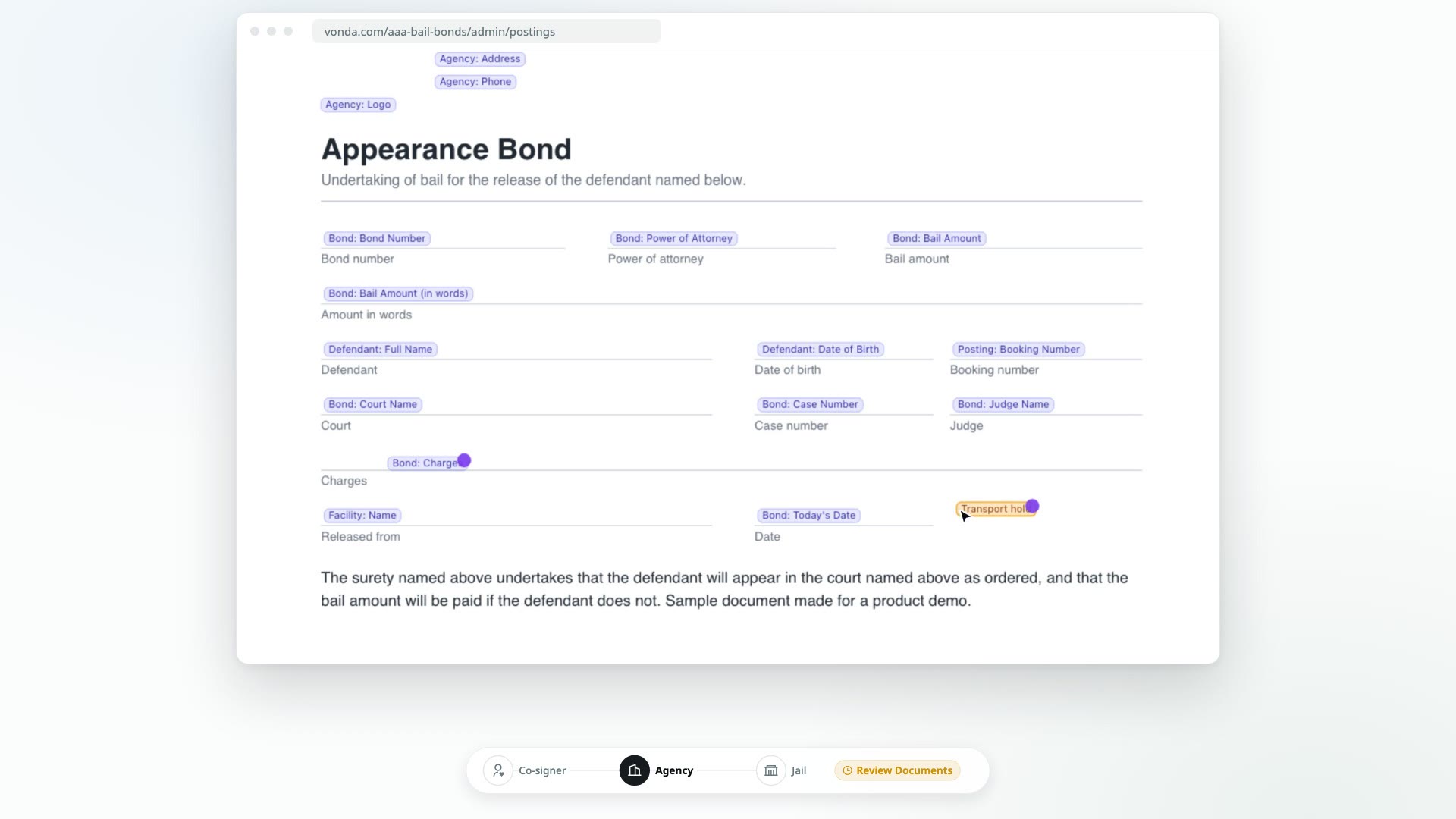
Sometimes a detail lands in the wrong spot on one bond's paperwork, for example a long charge that runs over a line, or a box this jail wants filled that your form doesn't cover. You can fix the placement for that one bond. Your agency's form stays exactly as it is, so every other posting is unaffected.
Before you start
- You can edit the posting. Only the posting's assigned agent or an agency admin sees the Edit tab.
- The posting is in Review Documents. That's the only status where placements can be changed, so fix them before you send the documents for signature.
- The document was generated from one of your agency's forms. Files someone attached by hand can't be edited this way.
- You're on a computer. The editor isn't available on a phone.
Fix the data first
If a detail is wrong, such as a misspelled name or the wrong case number, correct it on the posting instead. The documents are filled in again automatically. Use the editor only when the detail is right but prints in the wrong place, or when one bond needs something extra on the page.
Edit the placements
Open the document
On the Documents card, click the document you want to fix. It opens in the viewer.
Switch to Edit
At the top of the viewer, click Edit. The fields your agency placed on the form show as markers on the page. Changes here apply to this bond only.
Make your changes
- Move a field: drag its marker to the right spot.
- Add a field: double-click where it should go, type the field you want, and press Enter. Text that doesn't match any field is printed exactly as you typed it, which is handy for a one-off note.
- Change a field: double-click its marker.
- Hide a field on this bond: select it and click the red trash icon next to it (its tooltip reads Hide in this bond), or press Delete.
- Undo a change: fields you changed carry a dot. Select one and click the undo-arrow icon next to it (its tooltip reads Revert to template) to put your agency's placement back. On a field you added yourself, the same icon reads Remove field and takes it off the page.
Let it save
Each change saves on its own, and the document is filled in again with your change. The viewer shows when it's saving and when it's saved.
Click Done
Click Done to close the editor. There's nothing else to save.
What happens next
- Only this copy changes. The same form on the posting's other bonds, other co-signers' copies, and every other posting keep your agency's placements. If several copies need the same fix, open each one.
- Your changes stick. Every time the documents are filled in again for this posting, your placements are reused.
- When you're happy with the paperwork, send the documents for signature.