Postings
Correct a posting's details
Fix or fill in the defendant's and co-signers' details, the jail booking number and each bond's court details.
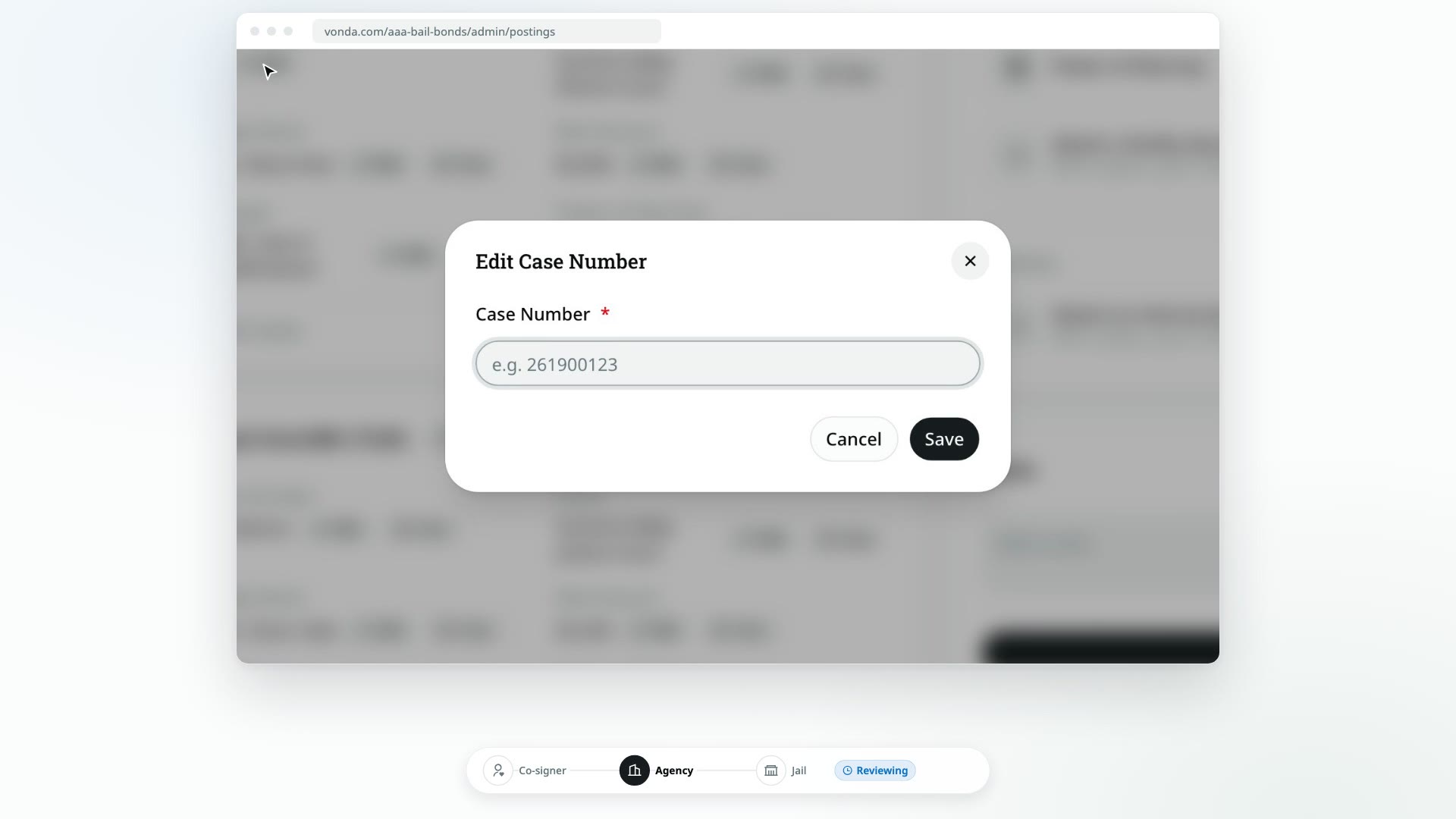
Part of every review is checking what the co-signer sent and filling in what they didn't know: the booking number from the jail, the case number, the court, the judge. Every field on the posting page is edited the same way, one field at a time.
Before you start
- You can edit the posting. Only the posting's assigned agent or an admin sees the Edit and Clear buttons.
- The posting is at a stage where details can change. You can edit while it's Reviewing, Awaiting Co-signer, Awaiting Info, Review New Info or Review Documents. Once the documents are sent for signature, the details are locked.
- The posting is open. A closed or archived posting can't be edited.
Edit a field
Find the field
- The defendant and each co-signer have their own card, grouped into Personal, Contact, Address and Employment.
- The booking number is on the Booking card on the side, as Booking Number.
- Each bond's court details are on its card under Bonds: Case Number, Court, Judge Name, Bail Amount and Charges.
Click Edit
Click Edit next to the field. A small dialog opens with just that field.
Save
Change the value and click Save. You'll see a message confirming the field was updated.
To empty a field, click Clear next to it instead.
What you can't edit
- A verified email or phone number. A co-signer's email or phone shows Verified once they've proved it with a code, and it has no Edit button. That's the contact every update goes to, so it can't be changed from here. Contacts they typed but didn't verify show Unverified and can be edited.
- The facility. The facility is set when the request comes in and can't be changed on the posting.
- The price, once approved. You can correct a bail amount on a bond card while reviewing the documents, and the paperwork updates, but the amount the co-signer is charged doesn't change after approval. See Price and approve a posting.
- Fields you've asked the co-signer for. While a field is marked Requested, you can't edit it yourself.
What happens next
- The posting's documents are regenerated with the new value, so the paperwork always matches the posting. The Documents card shows Updating while this runs.
- The change is recorded in the Activity log, and for a person's details, in that person's change history.
- Nobody is notified. The co-signer isn't told about your edits.
Missing something only the co-signer knows?
Instead of calling them, click Ask on the empty field and send them an info request. See Request missing information.