Postings
Assign or reassign a posting
Hand a posting to a specific agent, or move it from one agent to another.
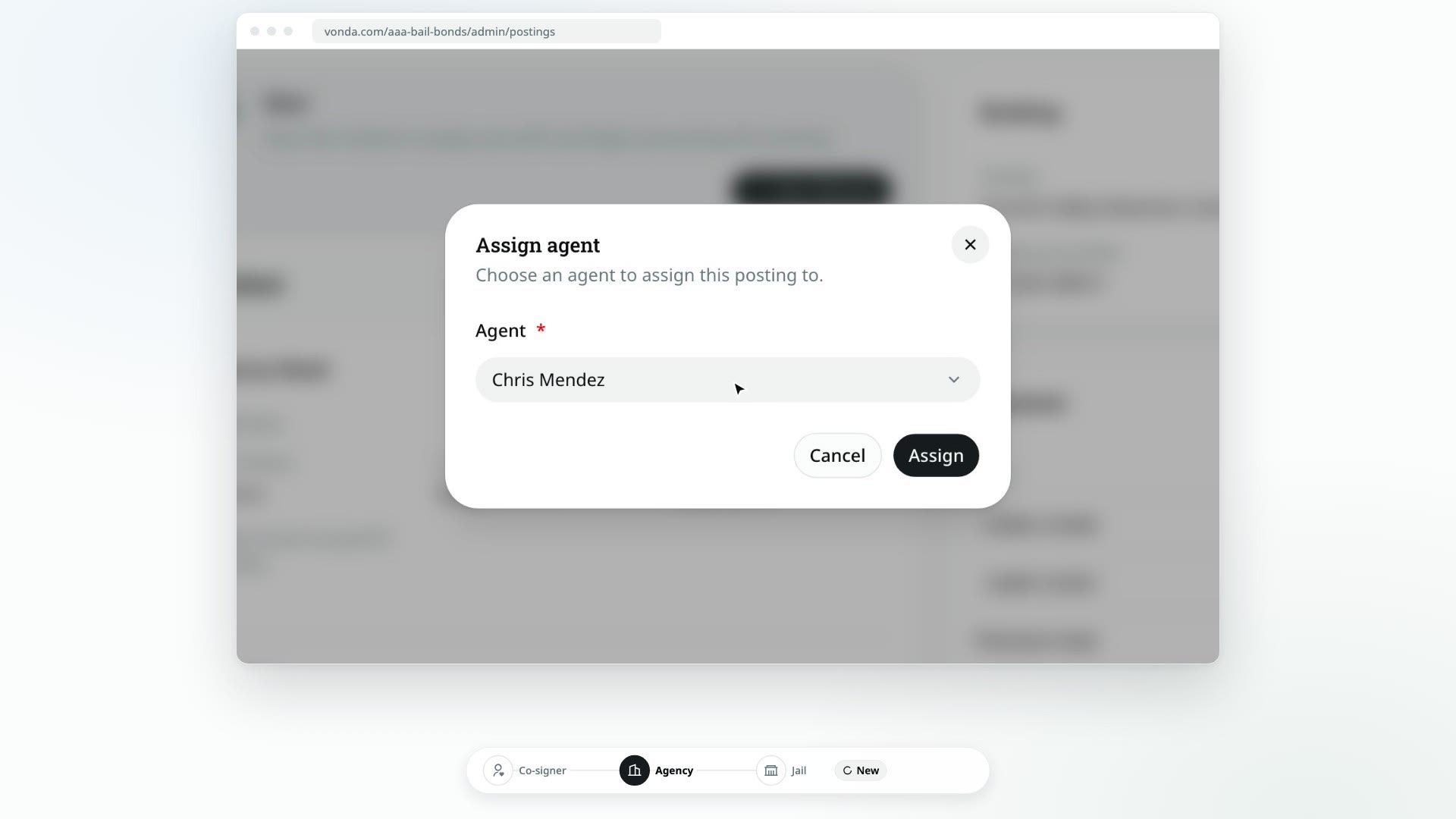
Admins decide who carries a posting. You can assign a new request to an agent before anyone claims it, or move a posting to someone else at any point, for example when an agent goes off shift.
Before you start
- Only admins see the Assign and Reassign buttons. An agent can claim an unassigned posting by starting its review, but can't hand a posting to someone else.
- The posting is open. The buttons are hidden on closed and archived postings.
Assign the posting
Open the posting
Find it on the Dashboard or on the Postings page and click it.
Click Assign or Reassign
In the header, click Assign (if nobody has it yet) or Reassign. On a phone, open the menu in the header first.
Pick the agent
In the Agent list, choose who should carry the posting. A green dot next to a name means that person is on duty.
Save
Click Assign or Reassign.
What happens next
- The posting shows its new agent in the header, and the change is recorded in the Activity log.
- The new agent is told by email or text, depending on their notification settings. If you assigned the posting to yourself, nobody is notified.
- A New posting becomes Start Review. Assigning doesn't start the review. The posting waits in the agent's Waiting for agent lane with a Start Review badge until they click Start Review. See Start the review.
- Anywhere else, the status stays the same. The new agent picks up exactly where the last one left off. The co-signer isn't notified, but their page shows the new agent's name and contact details.