Connect Kurv for online payments
Let co-signers pay online by connecting your agency's Kurv merchant account.
Kurv is the payment processor Vonda works with for online payments. When you connect your Kurv merchant account, the primary co-signer pays the Amount due with a Pay Now button on their bail page, and the money goes to your Kurv account.
Before you start
- Only admins can connect Kurv.
- You need a Kurv merchant account and its API key, which you'll find in your Kurv merchant dashboard. A key that starts with
kp_test_is for trying things out without real charges. A key that starts withkp_live_takes real payments.
Online payment replaces manual proof
While Kurv is connected, the primary co-signer only sees Pay Now. They can't upload a receipt for a payment made another way, and your payment instructions aren't shown. Your team can still record a payment taken in person on the posting.
Connect it
Open Payments
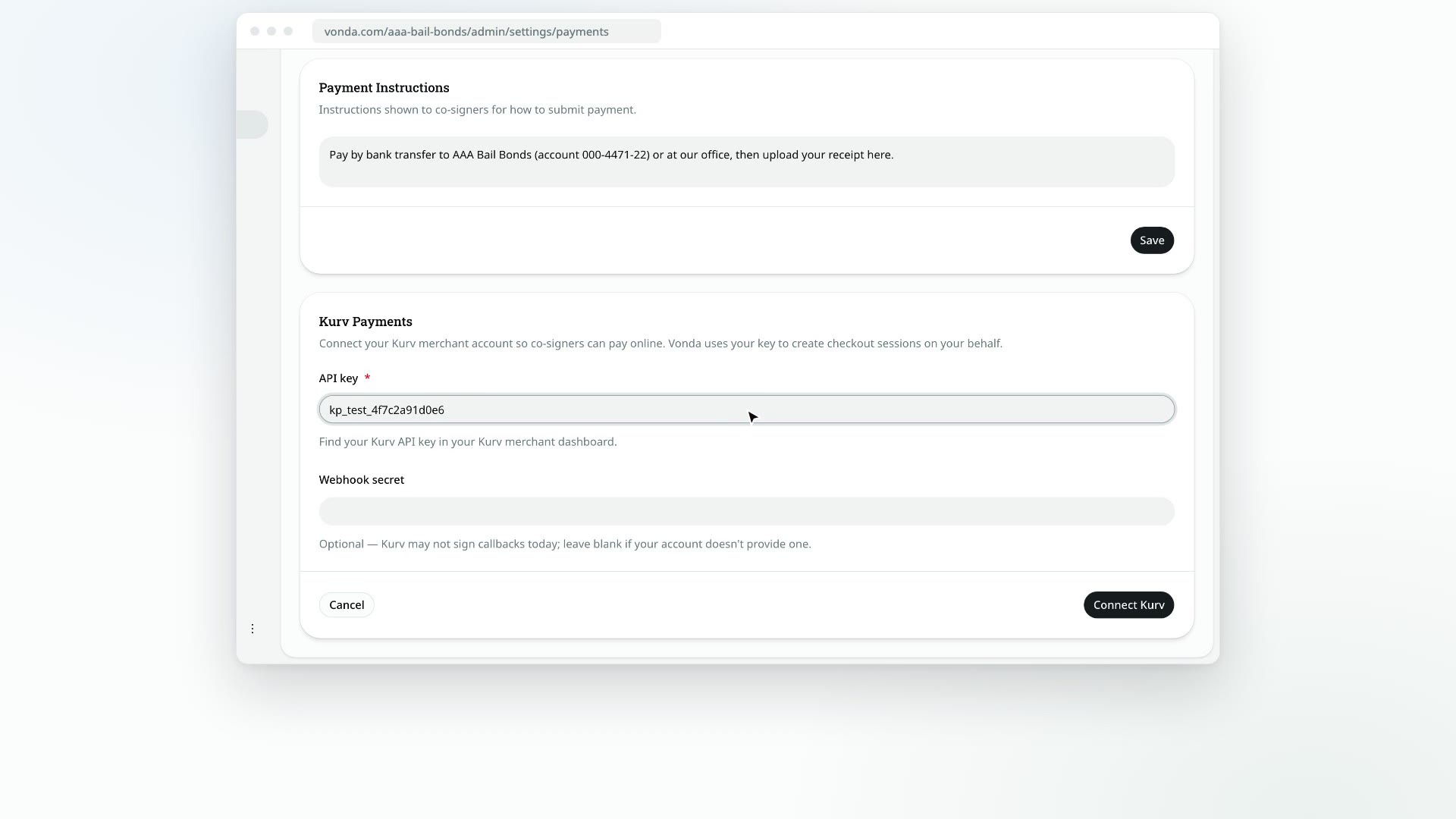
Click Settings in the sidebar, then Payments, and find the Kurv Payments card.
Enter your credentials
Paste your API key. If your Kurv account gives you a Webhook secret, paste it too. It's optional, so leave it blank if you don't have one.
Connect
Click Connect Kurv. Vonda checks the key with Kurv before saving it. If Kurv doesn't accept it, you'll see Kurv rejected this key. Double-check it and try again. When it works, you'll see Kurv connected successfully.
What happens next
- The card shows Connected, with your API key partly hidden and whether a webhook secret is Configured or Not set.
- Co-signers pay online. When a posting is Awaiting Payment, the primary co-signer clicks Pay Now and pays on Kurv's checkout page. While Vonda waits for Kurv to confirm, the posting shows Processing Payment. See Follow or cancel an online payment.
Change or disconnect
- Edit credentials: enter a new API key or webhook secret and click Connect Kurv again. Cancel keeps the current ones.
- Disconnect: the Disconnect Kurv? dialog explains that co-signers can't pay online until you connect Kurv again with your API key, and that payments already in progress are left as they are. Click Disconnect. Co-signers go back to seeing your payment instructions and uploading proof. To take online payments again later, connect your key again.