Place merge fields on a template
Mark where Vonda should print each detail, like the defendant's name or the bail amount, on your PDF.
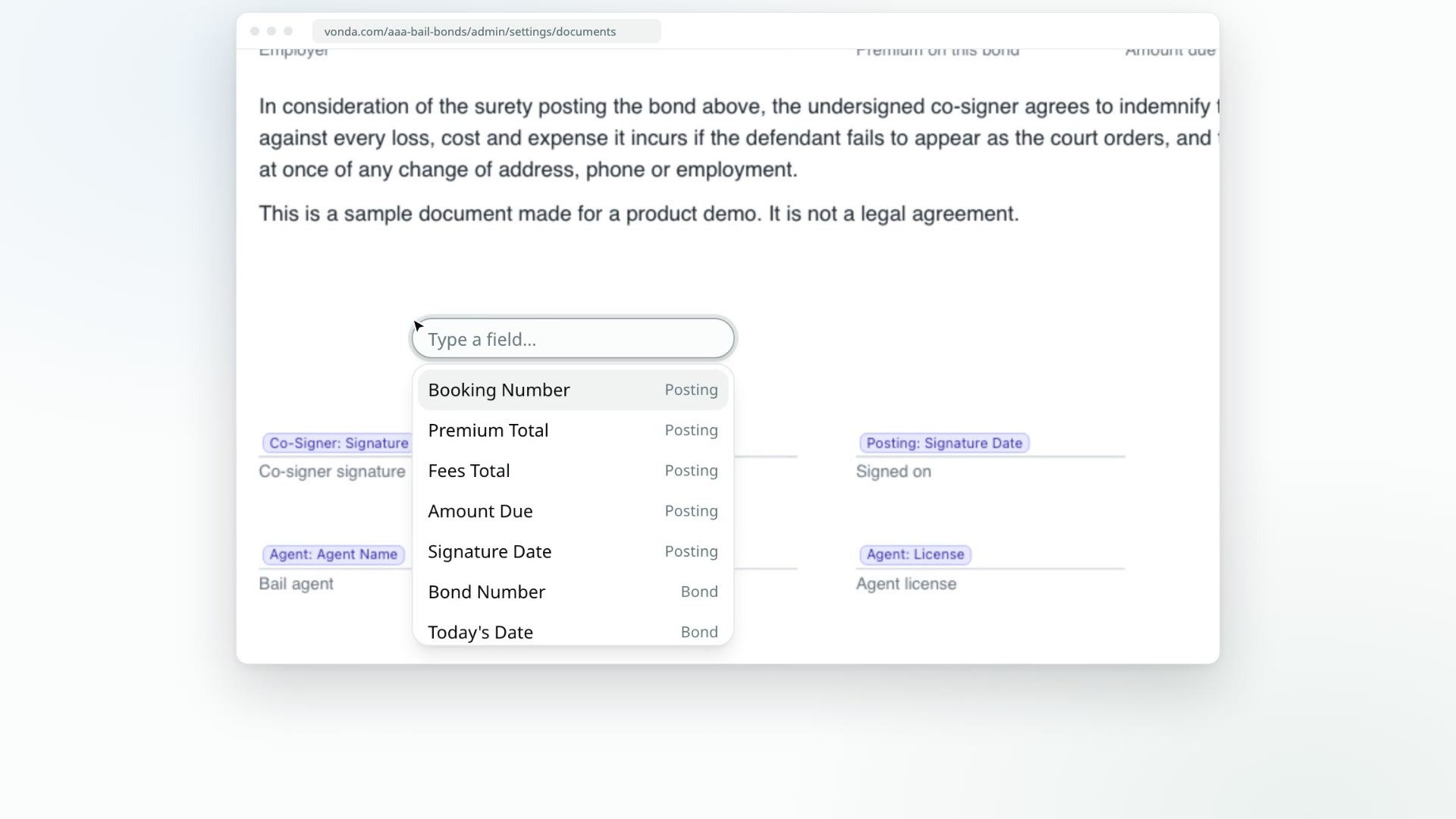
A merge field is a spot on your PDF where Vonda prints a detail from the posting, such as the defendant's name, the bail amount or the co-signer's signature. You place the fields once per template, and Vonda fills them in for every bond.
Before you start
- Only admins can edit templates.
- Upload the template first. See Upload your document templates.
- Every change saves on its own. There's no Save button. The badge at the top of the editor shows Saving…, Saved or Unsaved changes.
Place your fields
Open the editor
Click Settings in the sidebar, then Documents, and click the template's row. The editor opens full screen with every page of your PDF.
Double-click where the field goes
Double-click the spot on the page. A box appears with Type a field….
Pick the field
Start typing, for example bail or defendant name. Use the arrow keys to move through the matches and press Enter to place the highlighted one.
If what you type doesn't match any field, Vonda places your text as-is. That's handy for a word or mark the form needs on every bond.
Adjust it
- Move a field: drag it.
- Change a field: double-click it and pick a different one.
- Remove a field: click it and press Delete, or click the trash icon beside it.
Close the editor
Click Done.
To rename the template, edit the name at the top left of the editor. It saves like everything else.
Stuck? The help icon next to the name, Placing fields, repeats these tips.
The fields you can place
Fields are grouped by what they describe. Some examples from each group:
| Group | Examples |
|---|---|
| Posting | Booking Number, Premium Total, Fees Total, Amount Due, Signature Date, Collateral Amount |
| Plan | Payment Arrangement, Down Payment, Amount Financed, APR, Installment Amount, Number of Installments, Frequency, First Due Date, Final Due Date, Finance Charge, Total of Payments |
| Bond | Bond Number, Charges, Bail Amount, Bail Amount (in words), Case Number, Judge Name, Court Name, Power of Attorney, Premium Amount, Premium % |
| Defendant | Full Name, Date of Birth, Government ID, Address, Phone, Employer |
| Co-Signer | Full Name, Relationship, Address, Phone, Email, Preferred Contact, Signature |
| Facility | Name, City, County, State |
| Agent | Agent Name, Phone, Email, License, Printed Name |
| Agency | Logo, Name, License, Phone, Email, Fax, Address |
Type part of a group or field name in the box to find the rest.
The Collateral Amount field
Collateral Amount prints the collateral your agency is holding for the posting, for example $2,500.00, so an indemnity agreement can state the collateral received. It prints N/A while collateral is only requested, and again once it has been returned or forfeited, because your agency no longer holds it. It is never part of Amount Due. The field reads the collateral when a document is generated, so paperwork already signed keeps what it said when it was signed, even after the collateral is returned.
The Plan fields
The Plan fields print the posting's payment plan, the same on every copy. See Set up payment plans.
- Payment Arrangement prints the whole plan in one line, for example
$1,207.50 down, then 12 payments of $241.89 (the last $241.95) every 2 weeks at 12% APR, Oct 14, 2026 to Mar 17, 2027. On a posting without a plan it prints Paid in full, so a payment section on your indemnity form is never left blank. - The other Plan fields print nothing on a posting without a plan, rather than N/A.
- First Due Date and Final Due Date stay empty until the down payment is paid, because the schedule starts that day. The documents are filled in again at that payment, before you review them.
What happens next
- Filled documents follow your layout. Postings in Review Documents that already have this template regenerate straight away. Other postings use the new layout the next time their documents are generated.
- Empty details print as N/A. If a posting doesn't have a detail yet, such as a judge's name, that spot prints N/A.
- Co-signer documents are signed per co-signer. Each co-signer signs their own copy, and the Signature field prints that co-signer's signature.