Customize your client-facing theme
Pick the colors and fonts co-signers see on your intake page, their bail pages and your emails.
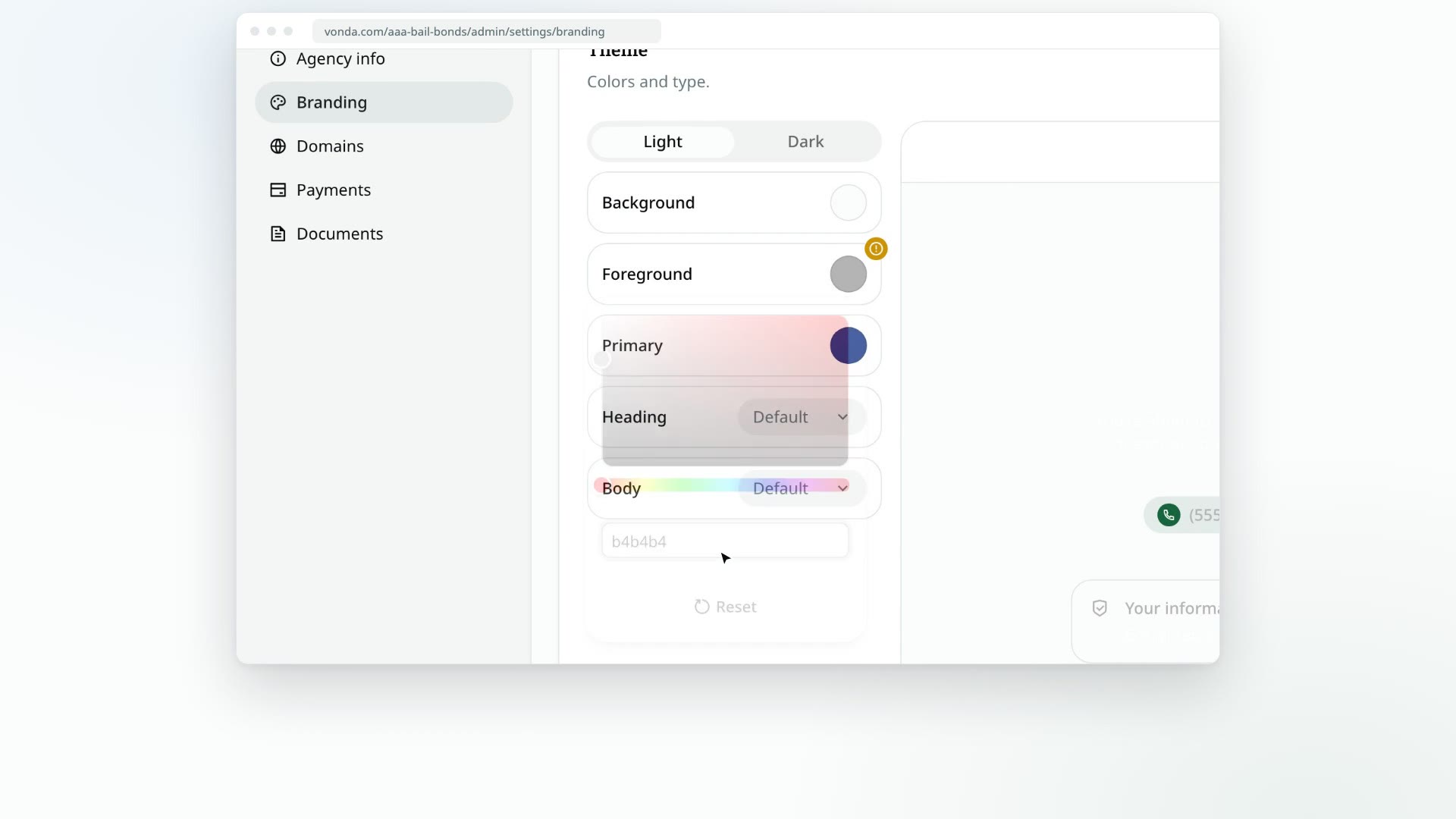
The theme dresses the pages and emails your clients see in your agency's colors and fonts. You pick three colors, each with a light and a dark version, plus a font for headings and one for body text. A live preview shows the result as you go.
Before you start
- Only admins can change the theme.
- It only applies to what your clients see. That's your intake page, co-signers' bail pages, your policy pages, client emails and payment receipts. The console your team uses, emails to your staff and the Appear page jails use all keep Vonda's own look.
- Anything you leave unset keeps Vonda's default for that color or font.
Set your theme
Open the Theme card
Click Settings in the sidebar, then Branding. The Theme card is under your logo.
Choose Light or Dark
The Light and Dark tabs above the colors pick which version you're editing. Co-signers can switch your pages between light and dark with the button on the page, so it's worth setting both.
Pick the colors
Click the round swatch next to Background, Foreground (the text color) or Primary (buttons and highlights). Pick a color, or type a hex code such as #1e3a8a in the box under the picker.
Pick the fonts
Next to Heading and Body, open the list and pick a font, or choose Default to keep Vonda's.
Check the preview
The preview shows your intake page. Switch to the Email tab to see a client email. The preview follows the Light or Dark tab you're on.
Save
Click Save. You'll see Brand theme updated.
Fix a hard-to-read color
If text would be hard to read against your background, a small warning badge appears on the color that causes it. Click the badge to read the warning. It tells you how strong the contrast is and the minimum that's easy to read, and offers a Use button with the nearest readable color. Click it to swap that color in.
Warnings never block you. Vonda saves exactly the colors you pick, so check the preview before you save.
Undo a color
Open the color's swatch and click Reset. It clears both the light and the dark version of that color, so it goes back to Vonda's default. Then click Save.
What happens next
- Your client pages change straight away. Anyone who reloads your intake page or a bail page sees the new theme.
- Emails and receipts use your Light colors. An inbox or a printed receipt has no dark mode, so client emails and payment receipts always use the light version of your theme.