Upload your logo
Add your agency's logo to your intake page, co-signer pages, client emails and documents.
Your logo is how co-signers recognize you. Vonda shows it on your intake page, on each co-signer's bail page, in the browser tab of those pages and at the top of the emails your clients get. It also appears next to your agency's name in the sidebar, and templates can print it on documents.
Before you start
- Only admins can change the logo.
- Have a square-friendly image ready. Vonda crops the logo to a square. A flat logo mark works better than a photo. You can pick a JPG, PNG or WebP file up to 2 MB.
Upload it
Open Branding
Click Settings in the sidebar, then Branding.
Pick your image
In the Logo card, click the current logo (or the empty circle) and choose your file.
Fit it in the square
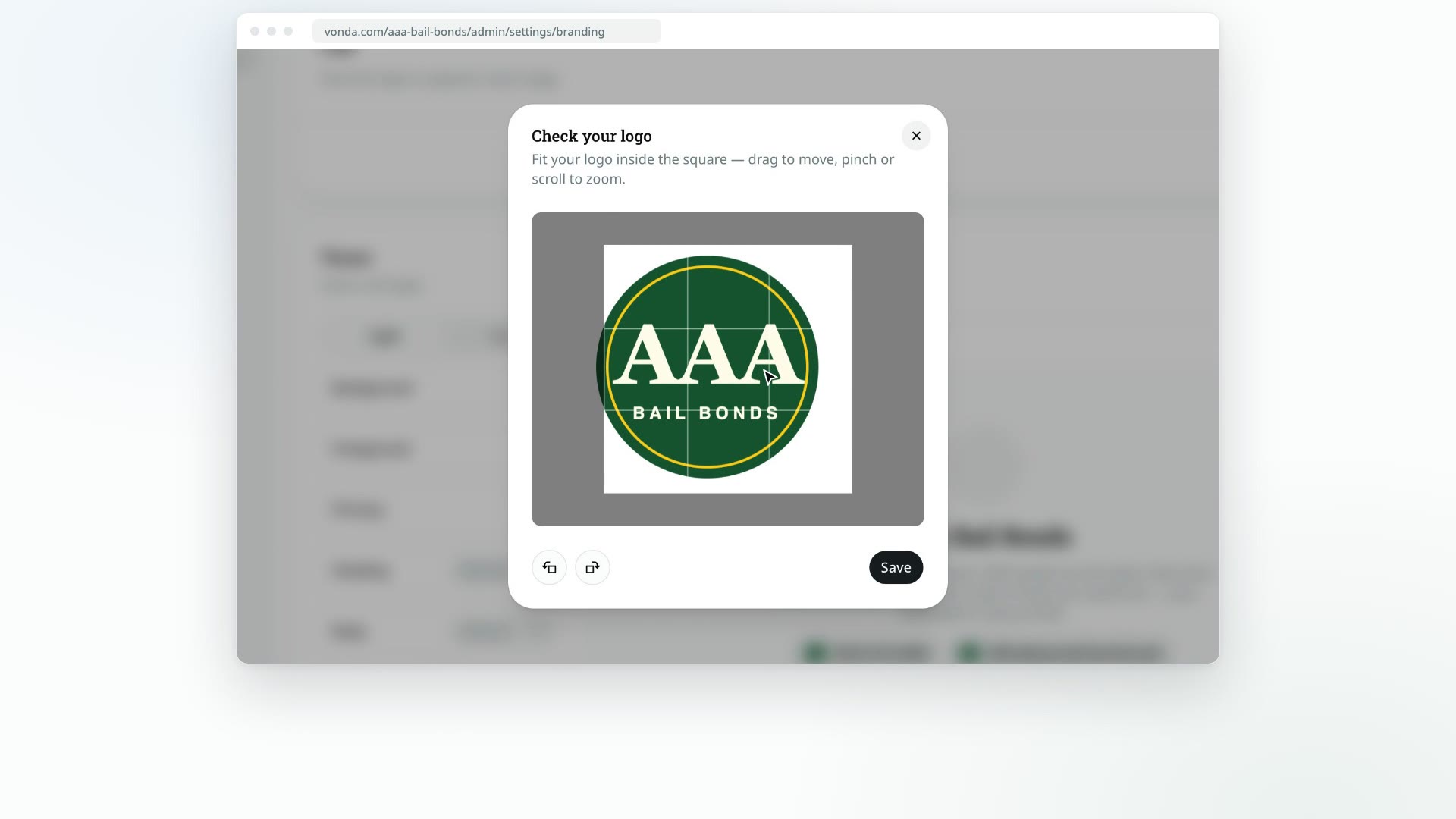
The Check your logo window opens. Drag to move the image, and pinch or scroll to zoom, until the logo sits inside the square the way you want it.
Save
Click Save. You'll see Logo updated., and the new logo appears right away in the Logo card and next to your agency's name in the sidebar. There's no need to reload the page.
If you see That image is too detailed to save as a logo (1 MB maximum)., the cropped image came out too large. Try a simpler logo file, such as one with flat colors instead of a photo.
Remove your logo
Click Remove in the Logo card. You'll see Logo removed., the logo disappears from the card and the sidebar, and your pages and emails stop showing a logo.
What happens next
- Your client-facing pages and new emails use the new logo straight away.
- Documents pick it up the next time they're generated, if your templates include the agency logo field. See Place merge fields on a template.
Ask co-signers for a Google review
Turn on Google reviews so every co-signer is asked for a Google review when the defendant is released, and add the link to your Google Business Profile.
Customize your client-facing theme
Pick the colors and fonts co-signers see on your intake page, their bail pages and your emails.