Review a co-signer's payment proof
Check the receipt a co-signer uploaded, then confirm the payment or reject it with a reason.
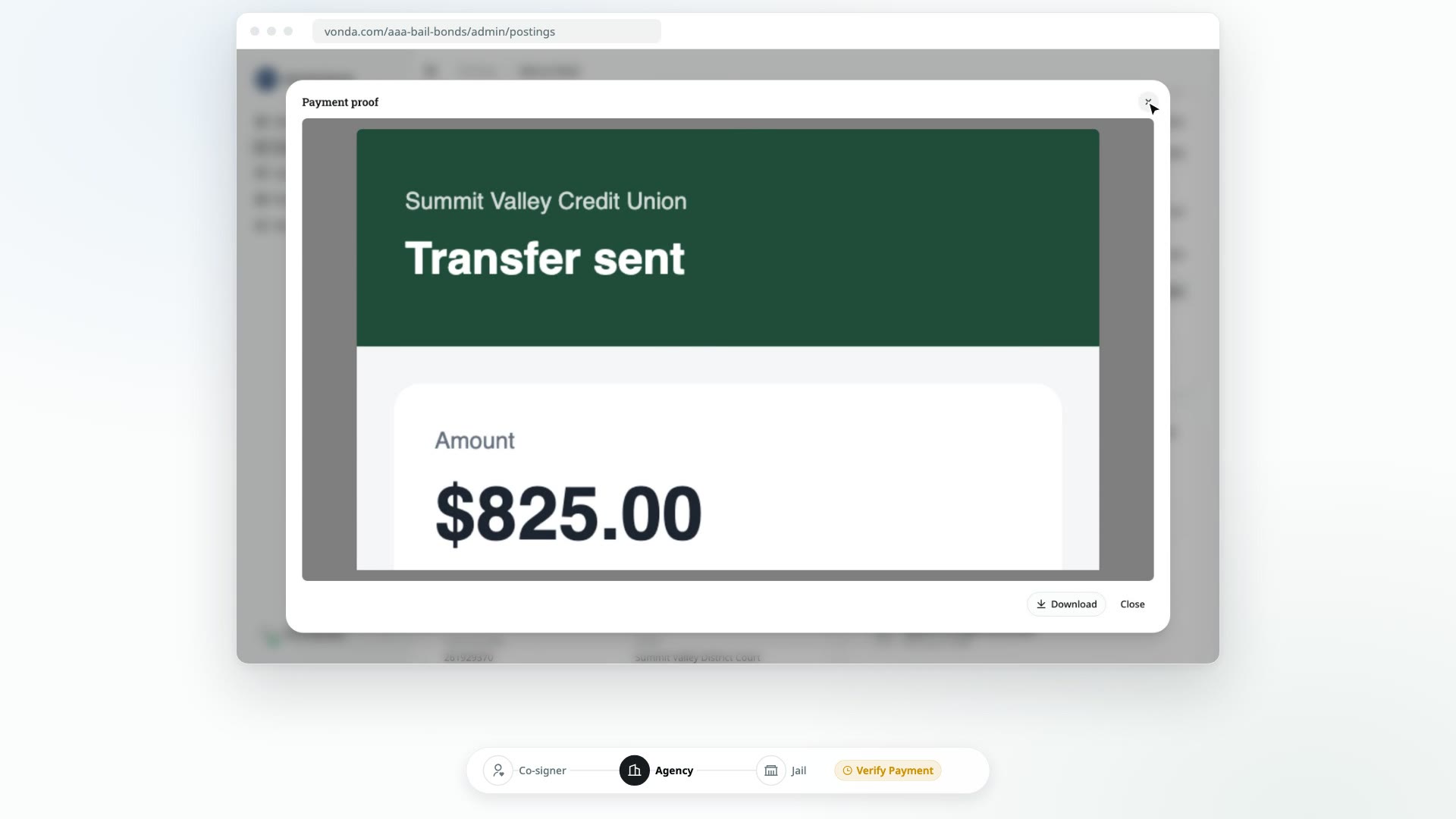
If your agency doesn't take online payments, the primary co-signer pays you the way your payment instructions say and then uploads proof, such as a transfer confirmation or a photo of a receipt. You look at that proof and either confirm the payment or reject it.
Before you start
- You can edit the posting. Only the posting's assigned agent or an agency admin sees Confirm Payment and Reject Payment.
- The posting shows Verify Payment. That amber badge means a co-signer has uploaded proof and it's waiting for you. The posting's assigned agent also gets a message saying a payment was reported and needs review.
- Your payment instructions are set up. Co-signers see the instructions an admin wrote in Settings → Payments (see Write payment instructions). If there are none, they're told to contact their agent.
What the co-signer does
When the posting is Awaiting Payment, the primary co-signer's bail page shows Confirm your payment, the invoice, and your Payment instructions. After paying, they:
- Upload a receipt (a JPG, PNG or PDF of up to 5 MB). The receipt is required.
- Add an optional note for you.
- Click Submit Payment Proof.
They don't type an amount. Their proof is for the posting's Amount due, or, when a payment plan is on offer, they say under This payment is for whether it's the Down payment or the Full amount. Other co-signers see Waiting on payment and can't upload anything.
Proof of collateral is reviewed on the Collateral card instead, with its own Confirm and Reject, and it never changes the posting's status. See Request collateral.
Proof of an installment, once a plan is running, is reviewed on the Payment card instead. See Collect installments and payoffs.
Review the proof
Open the proof
On the posting, go to the Payment card. Under the invoice you'll see the co-signer's note, if they left one, and a Payment proof row. Click it to open the file in a viewer. You can download it from there.
Check it against the amount due
Make sure the proof shows a payment for the Amount due on the invoice, or for the plan's down payment if that's what they paid, and that the money actually reached you.
Confirm or reject
- To accept it, click Confirm Payment in the status card, then Confirm in Confirm this payment?.
- To turn it down, click Reject Payment. In the dialog, you can write a Reason, such as
The transfer hasn't arrived yet. The co-signer sees this reason, so write it for them. Then click Reject Payment.
What happens next
If you confirm
- The status changes to Review Documents, and the Payment card shows Paid. For a down payment it shows On plan: the plan is accepted, and its installments start that day. See Collect installments and payoffs.
- A receipt is created and filed on the Payment card. See Find a payment's receipt and proof.
- The primary co-signer is told by text or email that the payment is confirmed. The email has the receipt attached.
- The documents are regenerated, ready for you to send for signature.
If you reject
- The status changes to Payment Rejected. The Payment card shows your reason, and on the Dashboard the posting moves to the Waiting for cosigner lane.
- The primary co-signer is told by text or email that the payment wasn't confirmed, with your reason.
- The co-signer can try again. Their bail page shows Resubmit your payment proof with a Payment proof not accepted notice and your reason. They upload new proof and click Resubmit Payment Proof. You're told about the new proof, and the posting goes back to Verify Payment. If your agency offers payment plans, they can also ask for one from that page. See Review a payment plan request.
- You can still record a payment yourself. If the co-signer ends up paying you in person, click Record Payment in the status card. See Record an in-person payment.