Record an in-person payment
Log a cash, check or transfer payment the co-signer made to you, so the posting moves on to its documents.
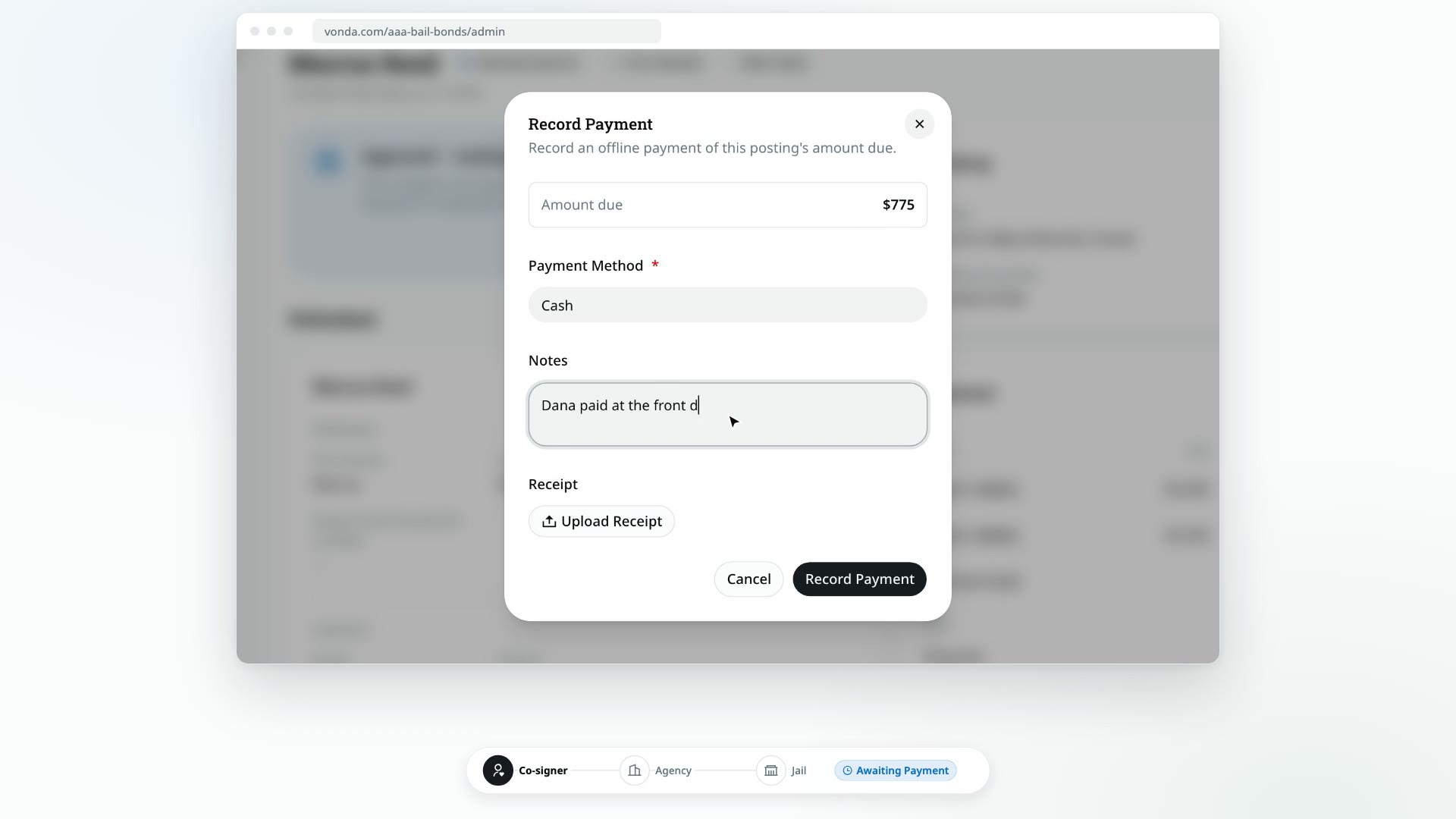
When a co-signer pays you directly, by cash, check, a bank transfer or anything else outside Vonda, you record it on the posting. Recording the payment marks the posting paid, files a receipt, and moves it straight to its documents.
Before you start
- You can edit the posting. Only the posting's assigned agent or an agency admin sees the Record Payment button.
- The posting is Awaiting Payment or Payment Rejected. You can record a payment once the posting is approved, and again after you've rejected a co-signer's proof, as long as nobody else has paid. On the Dashboard these postings sit in the Waiting for cosigner lane, so open the posting to find Record Payment. See Price and approve a posting.
- You have the full amount due, or the plan's down payment. A recorded payment covers the posting's whole Amount due, or, when a payment plan is on offer, its down payment. You can't record any other part of it or type a different amount.
- For collateral, use Record Payment on the Collateral card instead. Collateral is taken before approval and never moves the posting. See Request collateral.
- For an installment of a running plan, use Record Payment on the Payment card instead. See Collect installments and payoffs.
A co-signer already started paying online?
As soon as the co-signer clicks Pay Now, the posting shows Processing Payment and Record Payment is gone. If they then pay you in person instead, cancel the online payment first. The posting goes back to Awaiting Payment and you can record yours. See Follow or cancel an online payment.
Record the payment
Click Record Payment
Open the posting. In the status card at the top, click Record Payment.
Check the amount due
The Record Payment dialog shows the Amount due the co-signer was quoted. You can't change it.
If a payment plan is on offer, the dialog asks what was paid instead. Under Payment for, choose Down payment or Full amount, each with its amount. Recording the down payment accepts the plan. See Offer a payment plan.
Say how they paid
In Payment Method, type how the money came in, for example Cash, Check #1042 or Zelle. This field is required, and it's printed on the receipt.
Add anything else worth keeping in Notes, such as who handed over the money.
Attach a receipt (optional)
If you have a photo or scan of the check, the transfer confirmation or your own paper receipt, click Upload Receipt and choose the file. It can be a JPG, PNG or PDF of up to 5 MB. Wait for the upload to finish before you save.
Save
Click Record Payment.
What happens next
- The status changes to Review Documents. The Payment card now shows Paid, or On plan when you recorded a plan's down payment. In that case the plan's schedule starts that day, and the card lists it under the invoice.
- A receipt is created. Vonda generates a payment receipt and files it on the posting's Payment card, next to the file you uploaded. See Find a payment's receipt and proof.
- The primary co-signer is told. They get a text or an email, on the contact they verified, saying their payment was received. The email has the receipt attached. For a down payment, it also says when the first installment is due.
- The documents are regenerated so the paperwork is ready for you to review and send for signature. See Send documents for signature.
A recorded payment can't be undone
The posting has no button to reverse a recorded payment. Check the amount and the payment method before you click Record Payment.