Edit your profile
Change your photo, name, email, license number and phone number.
Your profile is what co-signers and your team know you by. Your name, license number and phone also print on the paperwork Vonda generates for the postings you're assigned to, wherever your agency's templates place them.
Before you start
- Anyone can edit their own profile. Nobody else can edit it for you, admins included.
- Open your settings. Click your name at the bottom of the sidebar, then Settings.
Each card on the page saves on its own, so click the Save under the card you changed.
Change your photo
Pick an image
In the Avatar card, click your current avatar and choose a JPG, PNG or WebP image up to 2 MB.
Check it
The new photo uploads straight away and shows next to your name in the sidebar, on the Team page and on the postings assigned to you. To go back to the plain placeholder icon, click Remove.
Change your name
In the Name card, type your name (2 to 32 characters) and click Save.
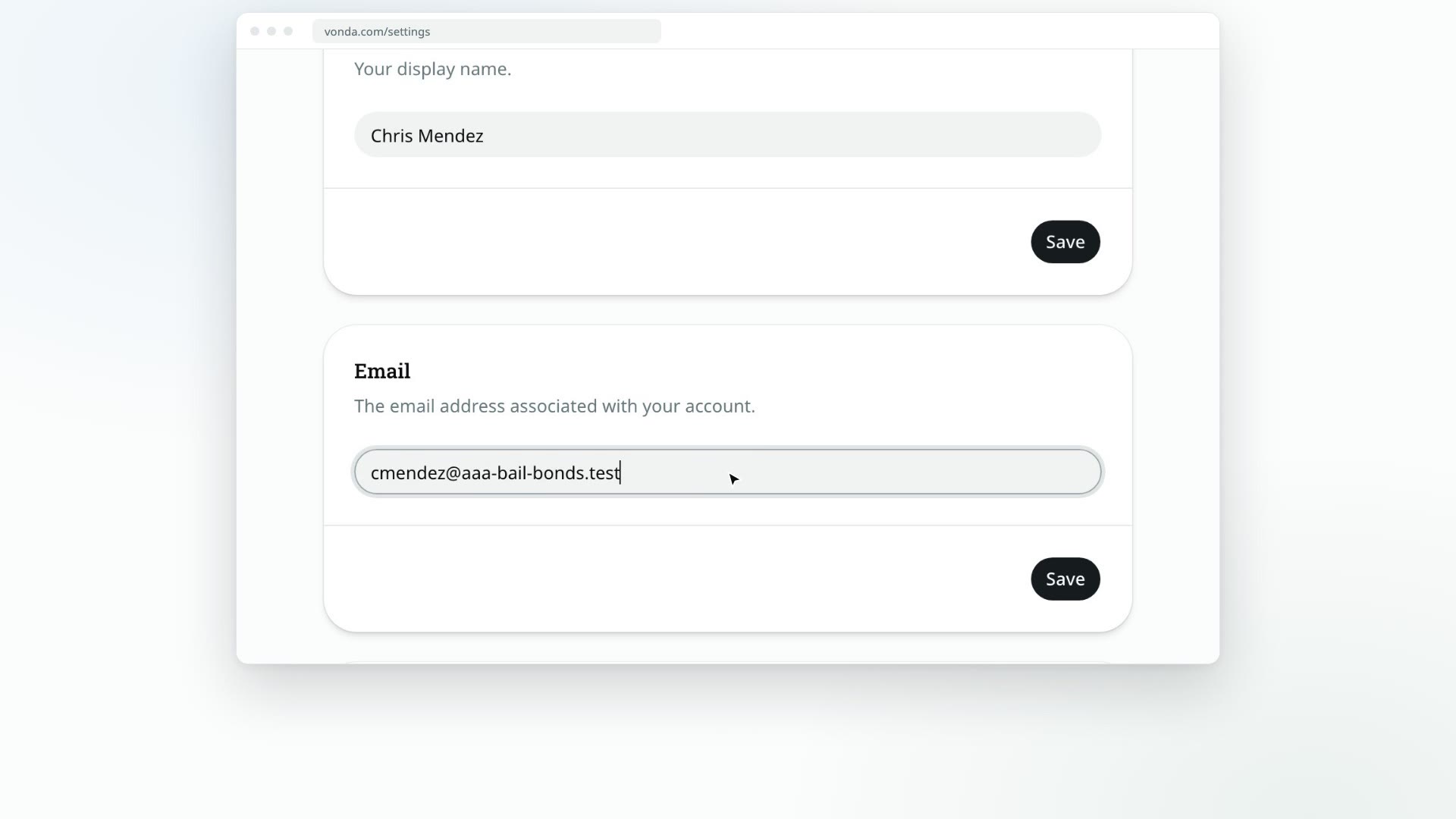
Change your email
You sign in with this address, so Vonda checks that you can receive mail there before it switches.
Enter the new address
In the Email card, replace your address with the new one and click Save.
Enter the code
Vonda sends a 6-digit code to the new address and opens the Verify your email dialog. Type the code. When you see Email updated successfully, the change is done.
From now on, sign in with the new address.
Add your license number
In the License Number card, type your license number and click Save. It needs at least 3 characters, using letters and numbers only (no spaces or dashes).
The card says it's Required for agents. Your license prints on the paperwork of every posting assigned to you, so a posting assigned to you can't be approved until you've added it, whoever clicks Approve. It also shows in the License # column on the Team page.
Add your phone number
In the Phone card, enter your number and click Save. You need a phone number to get notifications by text message, and co-signers can call you from their bail page.
Choose your notifications
The Notifications card at the bottom of the page decides how Vonda alerts you. See Choose how Vonda notifies you.