Find your way around
Use the sidebar to move between sections, switch agencies, change the theme and log out.
Everything in Vonda starts from the sidebar on the left. The top of it shows your agency, the middle holds the sections, and the bottom holds your own menu. On a phone, tap the menu button to open the sidebar.
The sections
| Section | What's there | Who sees it |
|---|---|---|
| Dashboard | The open postings, sorted by who each one is waiting on, and the court dates coming up this week. | Everyone |
| Postings | Every posting your agency has, open or not, with search. | Everyone |
| Calendars | Court dates. | Everyone |
| People | The defendants and co-signers your agency has worked with. | Everyone |
| Team | Your agency's staff. See View your team and roles. | Everyone |
| Reports | Your agency's numbers and charts. | Admins only |
| Settings | How your agency is set up. See Set up your agency. | Admins only |
If you're an agent, Reports and Settings aren't in your sidebar at all.
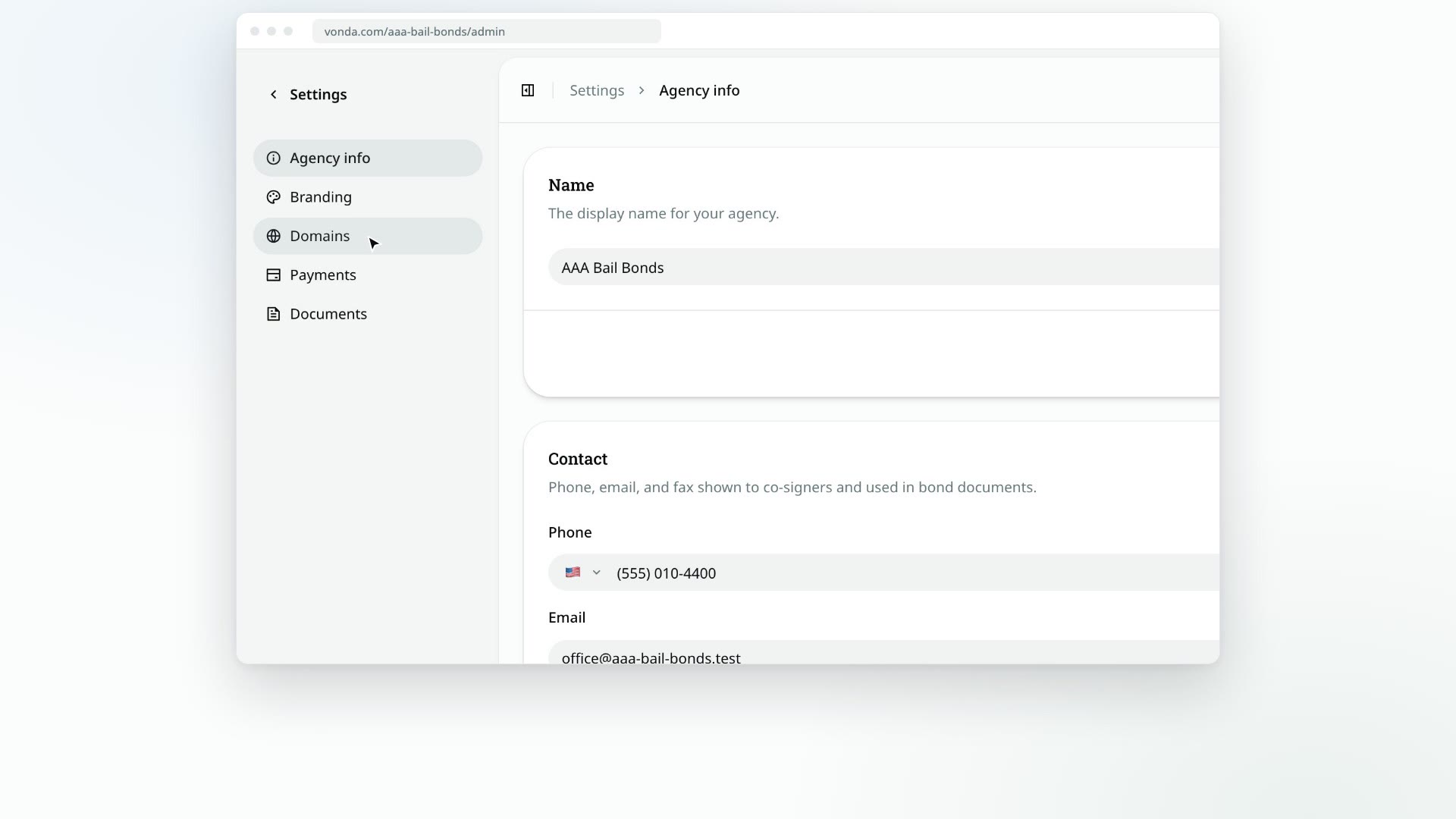
When an admin clicks Settings, the sidebar switches to the settings sections: Agency info, Branding, Domains, Payments and Documents. Click the back arrow next to Settings at the top to return to the main sections.
Switch agencies
If you work for more than one agency, click the agency name at the top of the sidebar and pick another one from the list. If you belong to only one agency, its name is shown but there's nothing to pick.
Vonda remembers the last agency you opened and takes you back to it the next time you sign in.
Your menu
Click your name at the bottom of the sidebar to open your menu. It shows your name and email, then:
- On duty or Off duty: your current duty status. Click it to switch. See Go on or off duty.
- Settings: your own account settings, such as your name, phone and notifications. See Edit your profile.
- Theme: each click switches the look between Light, Dark and System, which follows your device. The icon beside it shows the current choice. It only changes how Vonda looks in this browser.
- Log out: signs you out of Vonda.
Two kinds of settings
Settings in your menu is about you: your profile and how you're notified. Settings in the sidebar is about the agency: its name, branding, payments and documents. Only admins see the agency one.