Use the Dashboard
See every open posting sorted by who it's waiting on, and the court dates coming up this week.
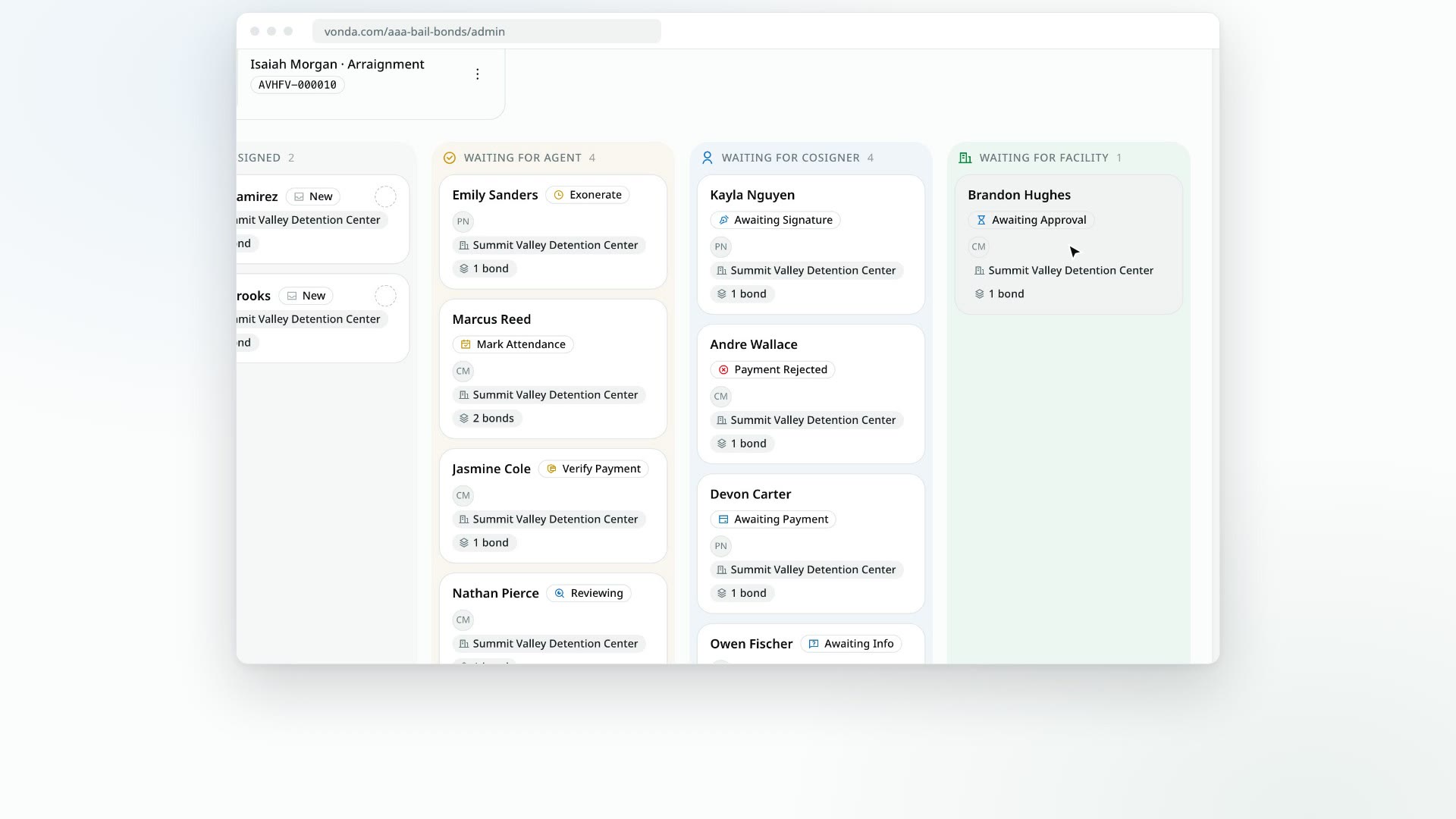
The Dashboard is the first page you see when you sign in. It answers one question: what's waiting, and on whom? Every open posting sits in one of four lanes, and the court dates coming up in the next seven days are listed above them.
Before you start
- Everyone on the team has a Dashboard, but it isn't the same for everyone. An agent sees unassigned postings plus the postings assigned to them. An admin sees every posting in the agency.
- Only open postings appear. Closed, archived and exonerated postings aren't on the board. To find them, use Find a posting.
Read the four lanes
Each lane is named for who the posting is waiting on. The number next to the lane's name is how many postings are in it.
| Lane | What's in it |
|---|---|
| Unassigned | Postings no agent has picked up yet, usually new requests from your intake link. Anyone can claim one. |
| Waiting for agent | Postings where the next move is yours: start the review, approve, answer a payment plan request, verify a payment proof, send documents, fix a facility rejection, mark a court date's attendance, and so on. |
| Waiting for cosigner | Postings where a co-signer still has to answer a question, pay or sign. This includes Awaiting Payment and Payment Rejected postings, with or without a payment plan on offer, and online payments still processing. |
| Waiting for facility | Postings whose paperwork has reached the jail, until the defendant is released. |
Cards in each lane are listed oldest first, so the posting that has waited longest is always at the top.
Paid in person?
A posting waiting on payment sits in Waiting for cosigner, because paying is the co-signer's move. If they pay you in person instead, open the posting: Record Payment is still in its status card. See Record an in-person payment.
A released posting doesn't normally appear on the board. It comes back under Waiting for agent when all of its court dates are behind it: with an Exonerate badge when it's ready to exonerate, or a Mark Attendance badge when a past court date still needs to be marked attended or missed. See Mark court attendance and Exonerate a posting.
A released posting on a payment plan also comes back under Waiting for agent when its plan needs you, whatever its court dates say: Verify Payment when the co-signer sent proof of an installment, and Payment Overdue when an installment is unpaid past its due date. See Collect installments and payoffs.
Read a card
Each card shows:
- The defendant's name.
- The status badge. Amber means it's your move, and the label says what to do (for example Start Review, Review Plan Request or Verify Payment). Blue means you're waiting on someone else (for example Awaiting Payment). Red means something was rejected: a Payment Rejected posting waits on the co-signer, a Facility Rejected one on you.
- The assigned agent's picture. A dashed empty circle means nobody is assigned yet. Hover over it to see the agent's name.
- The facility and the number of bonds.
- A Collateral pending mark, while you've asked the co-signer for collateral and it isn't held yet. The posting can't be approved until the collateral arrives.
Click anywhere on a card to open the posting.
Check upcoming court dates
Above the lanes, Upcoming court dates lists every court date in the next 7 days, soonest first. Agents see the court dates on their own postings. Admins see every court date in the agency. When one posting has several bonds due in court at the same date and time, they're shown as one card.
- Click a card to open the posting.
- If you can edit the court date, a menu on the card lets you edit or remove it, or mark attendance once the date has passed.
- Click View calendar to see every court date by month. See Browse the calendar.
When the board is empty
If nothing is open, the board is replaced by No open postings right now. It offers a Share intake link button, because new requests land on the board as soon as a co-signer submits the form. See Share your intake link.