Manage team members
Change a member's role, put them on or off duty, or remove them from your agency.
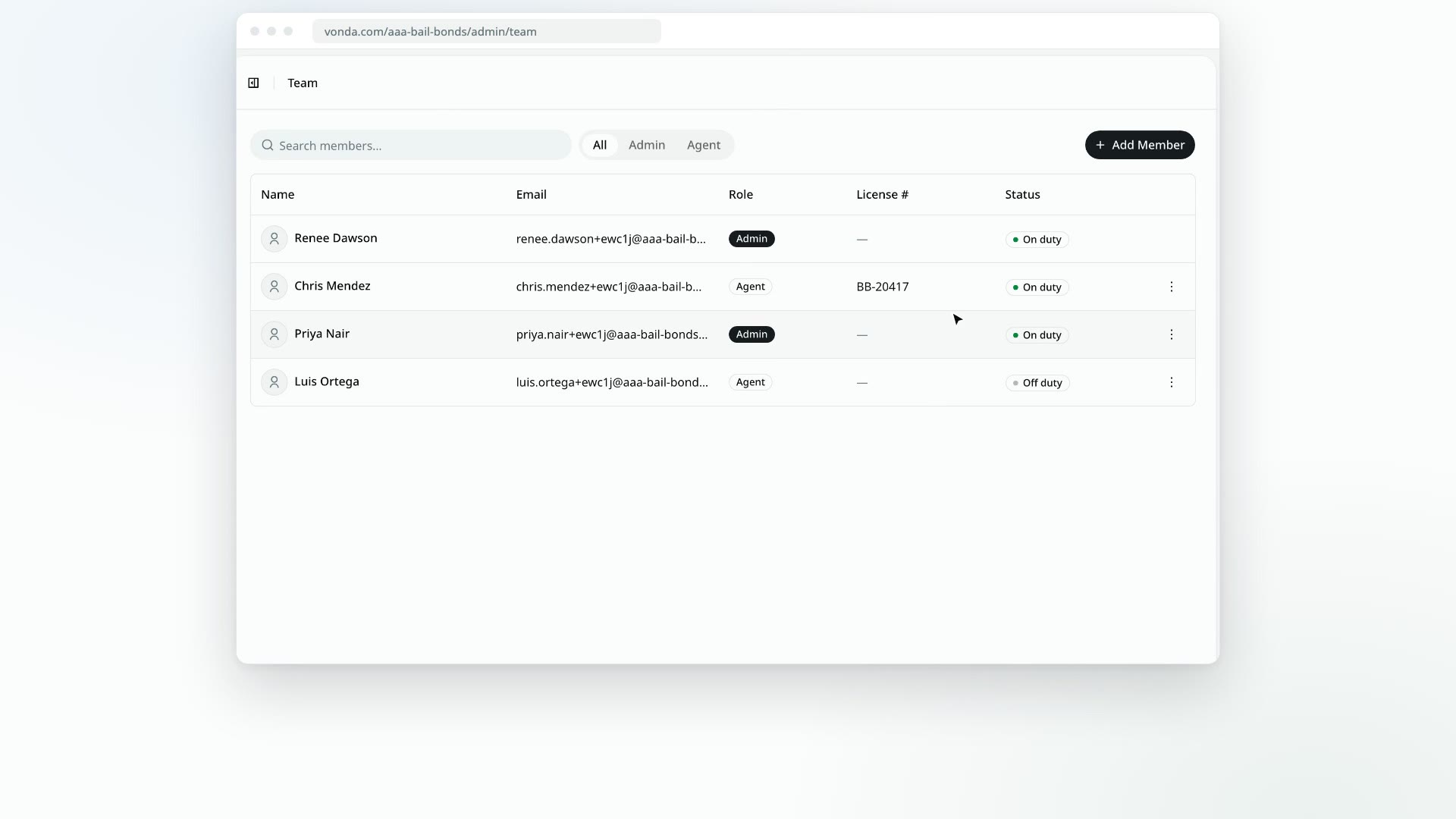
Admins manage the team from the menu at the end of each member's row on the Team page. From there you can change someone's role, set their duty status, or remove them.
Before you start
- Only admins see the row menu. Agents can view the Team page but can't change it.
- You can't change yourself here. Your own row has no menu. Another admin has to change your role or remove you. To change your own duty status, use your menu. See Go on or off duty.
- Open the menu. Click Team in the sidebar, then the ⋯ button at the end of the member's row.
Change a member's role
Choose Change role
In the row menu, choose Change role.
Pick the new role
The Change Role dialog asks you to select a new role for the member. Pick Admin or Agent.
Confirm
Click Confirm. You'll see Role updated.
What each role can do is listed in View your team and roles.
Put a member on or off duty
In the row menu, choose Set on duty or Set off duty. The Status column updates and you'll see Status updated. This is useful when someone forgets to go off duty at the end of a shift, so alerts for new postings stop going to them.
Remove a member
Removing someone takes away their access to your agency straight away. Their Vonda account stays, so they keep access to any other agency they belong to.
Every posting assigned to them becomes unassigned at the same moment, and each one's activity log records that you removed them. Until someone picks those postings up, their alerts go to whoever is on duty, or to the admins if nobody is. See Assign or reassign a posting.
Choose Remove
In the row menu, choose Remove.
Type their email
The Remove Member dialog says they lose access to this agency and every posting assigned to them becomes unassigned, then asks you to type the member's email address to confirm.
Remove
Click Remove. You'll see Member removed, and they disappear from the table.
To give them access again later, add them again. See Add a team member.