Add a team member
Give an agent or another admin access to your agency in Vonda.
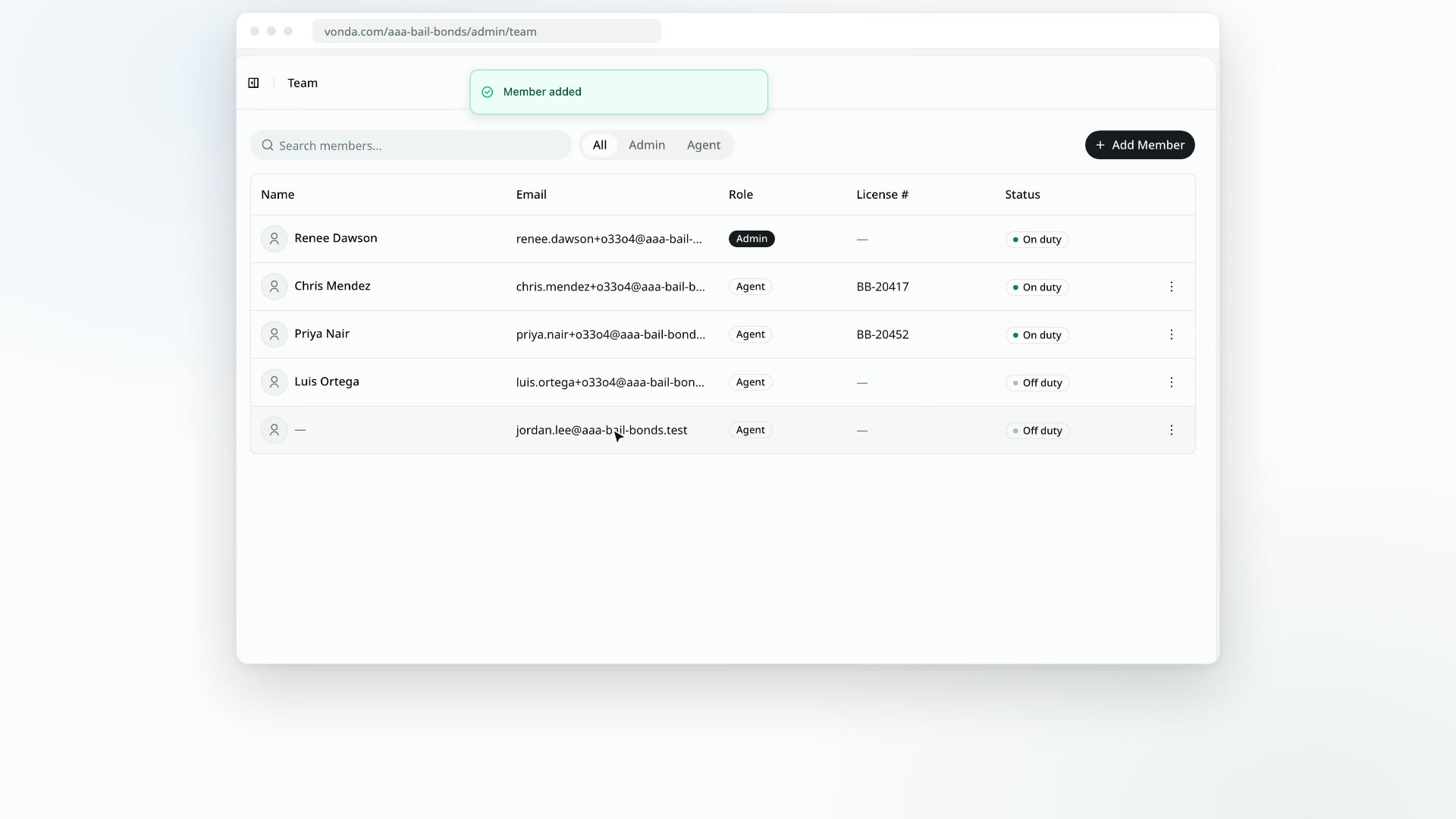
To give someone access to your agency, add them by email and pick their role. Vonda emails them a link to sign in. There's no invitation to accept: they're a member as soon as you add them.
Before you start
- Only admins can add members. Only admins see the Add Member button on the Team page.
- Use the email they'll sign in with. They sign in with a code sent to this address, so it has to be one they can read.
- Pick the right role. Agents work the postings assigned to them. Admins can do everything, including settings and team changes. See View your team and roles.
Add them
Open the Team page
Click Team in the sidebar, then Add Member above the table.
Fill in the dialog
In the Add Member dialog, type their Email and choose a Role: Admin or Agent.
Add
Click Add Member. You'll see Member added, and they appear in the table.
If they're already on your team, you'll see This user is already a member of this organization.
What happens next
- They get a welcome email. It's titled "You've been added to" your agency's name, says who added them and in which role, and has a Sign in to Vonda button.
- They sign in with a code. The first time, Vonda asks them to set their name before anything else. See Sign in to Vonda.
- They start off duty, with email notifications on. They can change both from their menu. See Go on or off duty and Choose how Vonda notifies you.
- Agents should add a license number and phone. Their license prints on paperwork, and a posting assigned to them can't be approved until it's on file. A phone lets co-signers call them and lets them get text alerts. See Edit your profile.
Someone who already uses Vonda
If the person already has a Vonda account, for example at another agency, adding them gives the same account access to your agency too. They switch between agencies from the top of the sidebar.