Find a posting
Browse every posting in your agency by shelf, and search by defendant, co-signer, bond number or booking number.
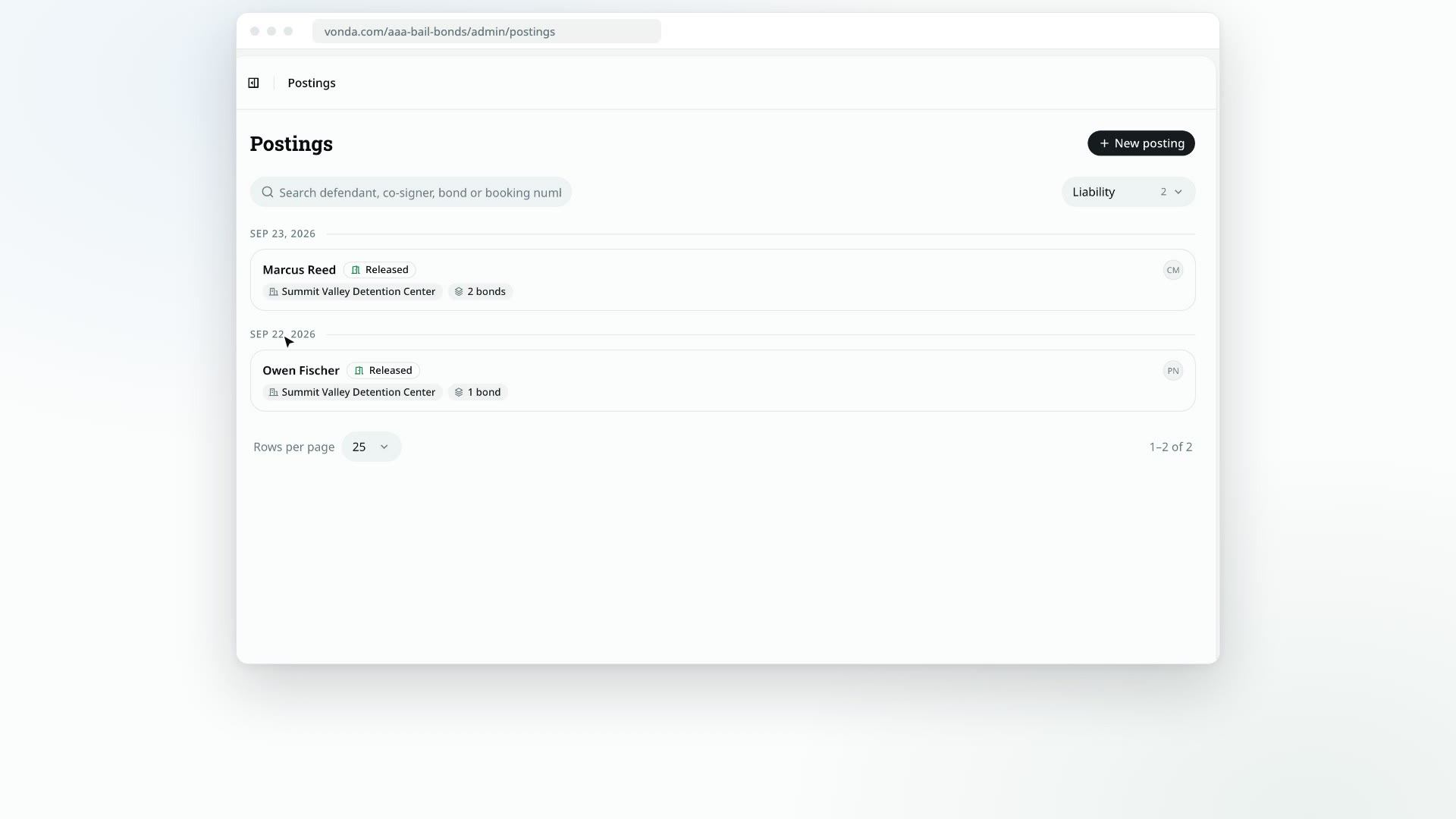
The Postings page is your agency's full book: every posting, open or finished. Use it when you need a posting that isn't on the Dashboard, or when someone calls and you need to find their case fast.
Before you start
- Everyone on the team can use this page, and it lists every posting in the agency, not only yours.
Pick a shelf
Postings are sorted onto five shelves. Pick one from the menu next to the search box. Each shelf shows how many postings are on it.
| Shelf | What's on it |
|---|---|
| Open | Every posting still in progress, from a new request until the defendant is released. |
| Liability | Postings where the defendant has been released. Your agency is on the hook for these until they're exonerated. |
| Exonerated | Postings whose court obligations are over. |
| Closed | Postings an admin closed before payment. They can be reopened. |
| Archived | Postings an admin filed away. They can be unarchived. |
The menu has one more entry, Holding collateral. It isn't a shelf: it lists every posting whose collateral is paid and still in your agency's hands, whatever shelf the posting is on, archived postings included. A posting leaves it once its collateral is returned or forfeited.
Within a shelf, postings are grouped by day, newest first. On Open, Closed and Archived the day is when the posting was created. On Liability it's the day the defendant was released, and on Exonerated it's the day the posting was exonerated.
Search
Type in the search box
Click the box that says Search defendant, co-signer, bond or booking number… and start typing. Part of a name or number is enough.
Read the results
The list narrows as you type. If a posting matched on something other than the defendant's name, the card tells you why, for example Co-signer: Dana Reyes or Bond AAABB-000123.
Check other shelves
Search only looks at the shelf you're on. If there's no match here but there are matches on other shelves, Vonda names each of those shelves with how many postings match there, and shows a button to search the first one instead.
Click the × in the search box to clear it.
Page through a long shelf
At the bottom of the list, use Rows per page to show 10, 25, 50 or 100 postings at a time, and the page numbers to move through the shelf.
Create a posting
If you take a request over the phone, click New posting at the top of the page. See Create a posting from a phone call.